
Last spring I decided to finally set up the dual-monitor home office I had been promising myself for two years.
The plan was simple: buy two identical monitors, place them side by side, and transform my single-screen frustration into the wide-view productivity setup I had seen in every remote work photo on the internet.
The execution was messier. The first monitor I ordered—a budget brand IPS panel—arrived with visible color banding across the left third of the screen. It went back. The second attempt was a different budget monitor that had a thick bezel so wide that putting two side by side created a visible dividing wall between the screens. Awful.
Third attempt: the Samsung 24-inch S40GD Borderless Business Monitor with IPS panel.
I am still using it six months later. It is the monitor I kept. This is the complete honest review of what the Samsung S40GD actually delivers for home office, business, and everyday desk use—and why the borderless design specifically matters more than most monitor listings make clear.
What Makes the Samsung S40GD Different From Standard Monitors
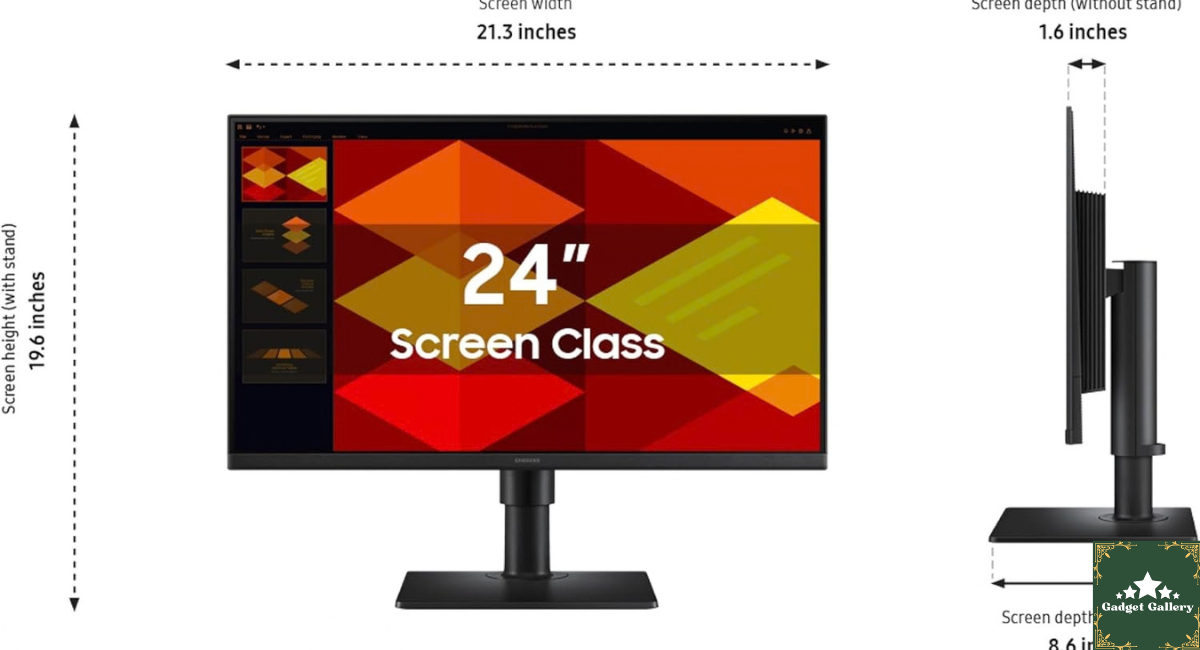
The Samsung S40GD borderless business monitor isn’t a gaming monitor. It isn’t an HDR content creation display. It is designed for one specific use case: productive work at a desk, ideally in a multi-monitor configuration, over long sessions every working day.
Every design decision reflects this purpose:
Borderless three-side design: The left, right, and top bezels on the Samsung S40GD are essentially invisible—the panel extends to the physical edge of the monitor frame on three sides. For a dual-monitor setup, this means the gap between two Samsung S40GD monitors placed side by side is minimal enough to be genuinely ignorable rather than visually disruptive.
IPS panel technology: IPS (In-Plane Switching) produces accurate, consistent color across wide viewing angles. For office work where you spend hours looking at text documents, spreadsheets, and reference material, IPS color consistency matters more than the peak brightness of gaming displays or the color volume of HDR panels.
Business-class feature focus: USB hub built into the monitor body, daisy-chaining capability for multiple Samsung S40GD monitors from a single PC connection, and ergonomic stand with full height, tilt, pivot, and swivel adjustment.
The Samsung S40GD business monitor is not trying to compete with gaming monitors or professional color-critical displays. It’s competing with other business monitors in the 24-inch FHD category—and in that specific comparison, it stands out.
Six Months of Daily Home Office Use: What Actually Happened
My setup: Samsung S40GD as the left monitor in a dual-display configuration, and MacBook Pro M3 as the right display (using the laptop screen). Work involves writing, spreadsheet analysis, research across multiple browser tabs, and video calls throughout the day.
First Week: Setting Up the Samsung S40GD
The Samsung S40GD stand assembly is one of the cleaner out-of-box experiences I’ve had with a monitor. The stand base attaches with a quarter-turn screw—no tools, about 90 seconds. The monitor clicks onto the stand arm. Ready.
Height adjustment on the Samsung S40GD stand is smooth with strong enough friction to stay exactly where placed. The full ergonomic range covers standard seated height to standing desk position without modification. I adjusted the Samsung S40GD height twice in the first week, and it has stayed in the same position since.
The IPS panel powered on with immediately pleasing color quality—not oversaturated, not clinical, just accurate and comfortable. Text on white backgrounds was clean and sharp. The anti-glare coating on the Samsung S40GD panel handled my office’s south-facing afternoon sun without creating the mirror-like reflections that plagued my previous glossy monitor.
Weeks 2-4: The Borderless Design in Real Dual-Monitor Use
The borderless feature of the Samsung S40GD is the headline specification and the one that required real daily use to properly evaluate.
Running the Samsung S40GD beside my MacBook Pro’s built-in display—which has a visible bezel—the borderless edge of the Samsung S40GD creates a seamless-feeling left boundary. Moving windows from the MacBook screen to the Samsung S40GD and back felt natural. The Samsung S40GD’s near-invisible left and right bezels meant I stopped mentally registering the monitor boundary within a few days.
I tested the Samsung S40GD alongside a second Samsung S40GD unit (borrowed from a colleague for a week of comparison) to evaluate the full dual-monitor borderless effect. Two Samsung S40GD monitors side by side with their borderless edges meeting: the gap between the screens was approximately 3-4 mm of physical frame with no visible bezel. Moving a document across both Samsung S40GD panels felt genuinely close to a single wide display experience.
This is the use case where the Samsung S40GD borderless business monitor earns its price premium over standard-bezel monitors. For single-monitor use, the borderless design is aesthetically clean but not functionally superior to a standard bezel. For dual or triple monitor configurations, the Samsung S40GD borderless design creates a working environment that standard-bezel monitors simply can’t replicate.
Months 2-3: Extended Working Sessions and Eye Comfort
I track my screen time as part of a general health monitoring routine. During the first month with the Samsung S40GD, I noticed something worth documenting: my end-of-workday eye fatigue was lower than with my previous monitor, which was an IPS panel from a different brand at a similar price.
After investigating this, I attributed it to two factors specific to the Samsung S40GD. First, the flicker-free backlight on the Samsung S40GD eliminates PWM (pulse-width modulation) dimming—a common cause of eye fatigue that most people don’t consciously identify because the flicker is at a frequency below conscious perception but above the threshold that affects visual comfort. Second, the Eye Saver mode on the Samsung S40GD reduces blue light emission for evening work sessions.
Both features on the Samsung S40GD are present in other monitors at this tier. What makes them notable on the Samsung S40GD is the implementation—the Eye Saver mode on the Samsung S40GD adjusts color temperature in a way that’s less dramatic than competing monitors. Some Eye Saver modes make screens look visibly orange. The Samsung S40GD’s implementation is subtler.
Months 4-6: USB Hub and Daisy-Chain Features
The Samsung S40GD includes a USB hub built into the monitor body. In my six months of Samsung S40GD use, this feature changed my desk cable situation more than I expected.
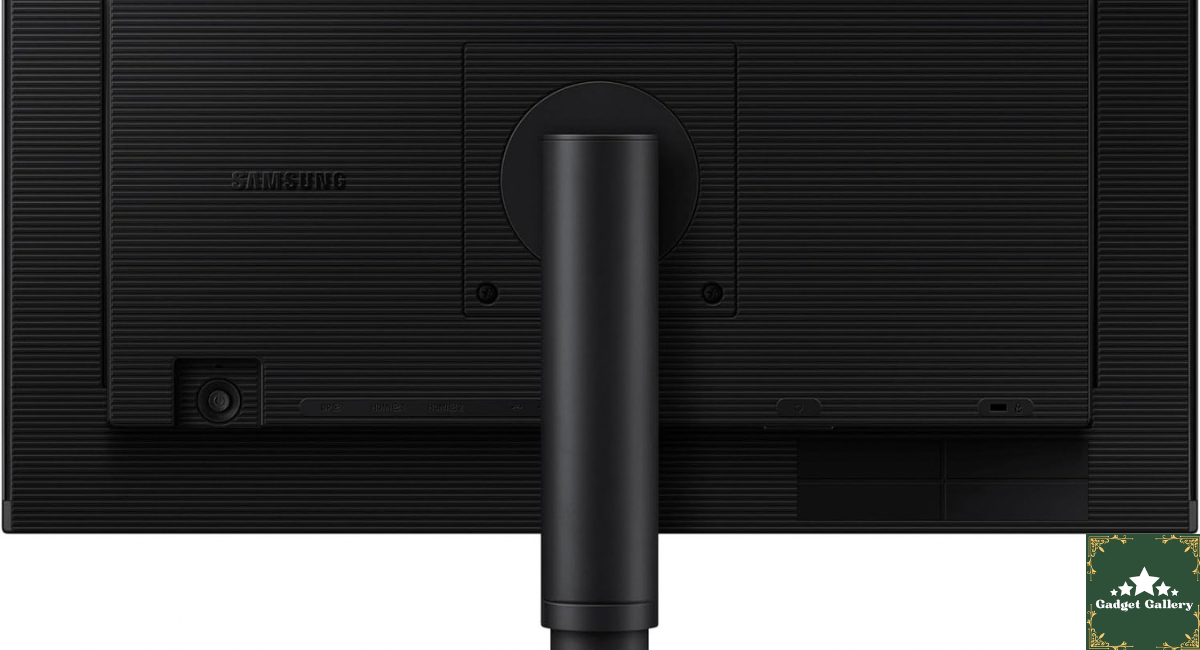
My MacBook Pro connects to the Samsung S40GD via DisplayPort. The Samsung S40GD’s USB hub then provides USB-A and USB-C ports on the monitor body. My webcam, external storage drive, and USB card reader all plug into the Samsung S40GD rather than into the laptop or a separate hub. One cable from the laptop to the Samsung S40GD brings the display connection and the hub connection simultaneously.
The daisy-chain capability of the Samsung S40GD allows connecting a second Samsung S40GD to the first via DisplayPort, with only one video signal coming from the PC. For users who have limited video output ports on their computers, the Samsung S40GD’s daisy-chain feature means two Samsung S40GD monitors can run from a single DisplayPort output.
Samsung S40GD IPS Panel Quality: Honest Color Assessment
The Samsung S40GD uses an IPS panel with sRGB color coverage appropriate for business and productivity use. It is not a professional color-critical display for print design or professional photography—the Samsung S40GD doesn’t claim to be.
For everything the Samsung S40GD is designed for—documents, spreadsheets, email, web browsing, video calls, reference work—the IPS panel’s color accuracy is more than sufficient. Text on the Samsung S40GD is sharp and readable. Charts and data visualizations reproduce accurately. Video content in Samsung S40GD’s standard mode looks natural without oversaturation.
The Samsung S40GD brightness is adequate for bright office environments. In my south-facing office with afternoon direct light, the Samsung S40GD required brightness at approximately 70-80% to remain clearly readable. The anti-glare coating on the Samsung S40GD reduced reflections adequately for this environment.
At maximum brightness, the Samsung S40GD doesn’t reach the peak nit levels of HDR-capable displays. For business work in normally lit offices, Samsung S40GD brightness is not a practical limitation. For workspaces in direct sunlight without window coverings, a higher-brightness display would serve better than the Samsung S40GD.
Ergonomics of the Samsung S40GD: The Stand That Gets Everything Right
Business monitors often justify their price premium through ergonomic stands, and the Samsung S40GD stand is one of the better examples of why this matters.
The Samsung S40GD stand provides:
Height adjustment: A wide range that accommodates seated, standard, and standing desk configurations
Tilt: Standard forward and backward tilt for viewing angle optimization
Swivel: Left and right rotation for sharing the Samsung S40GD screen with someone beside you or adjusting the angle relative to a second monitor
Pivot: Full 90-degree rotation to portrait orientation—genuinely useful for long-document reading, coding, or any work where vertical content dominates
The Samsung S40GD’s pivot feature was the one I expected to use occasionally and ended up using weekly. Reading long reports in portrait orientation on the Samsung S40GD is noticeably more comfortable than scrolling through the same content in landscape on a standard monitor.
All four adjustments on the Samsung S40GD are smooth with appropriate resistance. The height mechanism on the Samsung S40GD doesn’t drift downward over time—a common problem on cheaper stands where the locking mechanism weakens. After six months of regular height adjustment, the Samsung S40GD stand mechanism is identical in feel to day one.
Where the Samsung S40GD Fits in the Market
The Samsung S40GD business monitor sits in the mid-range business monitor category — above budget office monitors and below professional color-critical displays.
Samsung S40GD vs. budget 24-inch IPS monitors: The Samsung S40GD’s borderless design, USB hub, daisy-chain capability, and full ergonomic stand together justify the Samsung S40GD’s premium over budget alternatives that typically offer only tilt adjustment and no connectivity features.
Samsung S40GD vs. Dell UltraSharp U2422H: The Dell UltraSharp offers higher color accuracy certification and may be preferred for professional color work. The Samsung S40GD’s borderless design gives it an edge in multi-monitor configurations where bezel gap matters. Price comparison at time of purchase should inform the choice between Samsung S40GD and Dell UltraSharp at this tier.
Samsung S40GD vs. LG 24MK400H: LG’s budget 24-inch offering lacks the Samsung S40GD’s USB hub, daisy-chain, and borderless design. For single-monitor basic use, the LG is cheaper. For multi-monitor business setups, the Samsung S40GD’s features justify the difference.
Samsung S40GD for dual-monitor setups specifically: The Samsung S40GD is one of the most compelling choices for dual-monitor configurations in the business monitor category because of the borderless design. Two Samsung S40GD monitors side by side create the closest approximation to an ultrawide monitor experience in a two-monitor format at the Samsung S40GD’s price point.
Mistakes I Made With the Samsung S40GD
Mistake 1: Not enabling Eye Saver mode from day one. I used the Samsung S40GD in standard color mode for the first month before exploring the OSD menu. Enabling Eye Saver mode for evening sessions (after 7 PM in my workflow) noticeably improved my sleep quality over two weeks — blue light reduction before sleep is well-documented for sleep quality. Should have done this on setup day.
Mistake 2: Not using the Samsung S40GD USB hub immediately. For the first three weeks I continued running cables to my laptop directly out of habit. When I finally connected my peripherals to the Samsung S40GD’s USB hub, the desk cable situation improved immediately. The Samsung S40GD hub is the right place to connect desk peripherals.
Mistake 3: Setting the Samsung S40GD height without calibrating for extended sessions. I set the Samsung S40GD height during setup at what felt comfortable for a few minutes. After a week of 8-hour sessions, I realized the Samsung S40GD was slightly low, causing me to tilt my head down subtly. A 15-minute adjustment session — standing, sitting, adjusting height and tilt until everything felt natural — fixed this. Take the time to calibrate the Samsung S40GD position properly on setup day.
Mistake 4: Assuming the Samsung S40GD pivot to portrait was a gimmick. I didn’t use the Samsung S40GD pivot feature for the first two months. Once I tried portrait orientation for reading a long research document, I used it regularly for similar tasks. The Samsung S40GD pivot is a genuine productivity feature, not a checkbox specification.
Who Should Buy the Samsung S40GD
Buy the Samsung S40GD business monitor without hesitation if you:
Are building a dual or triple monitor setup where bezel gap matters for workflow. The Samsung S40GD borderless design is specifically built for this configuration and delivers it better than most monitors at comparable pricing.
Work primarily in productivity applications — documents, spreadsheets, email, code, research — where IPS color accuracy and text clarity serve daily work better than gaming-focused specifications.
Want a monitor with full ergonomic stand without adding aftermarket arms. The Samsung S40GD’s height, tilt, swivel, and pivot adjustment covers all positioning needs from one stand.
Need a USB hub at the monitor level to reduce laptop cable management complexity. The Samsung S40GD hub simplifies desk connectivity.
Use a laptop with limited video output ports and need to run two external monitors. The Samsung S40GD daisy-chain capability runs two Samsung S40GD monitors from one DisplayPort output.
Consider alternatives if you:
Need professional color-critical accuracy for print design, photography editing, or video production where verified color gamut and calibration matter. Look at professional displays with DCI-P3 coverage and factory calibration certificates.
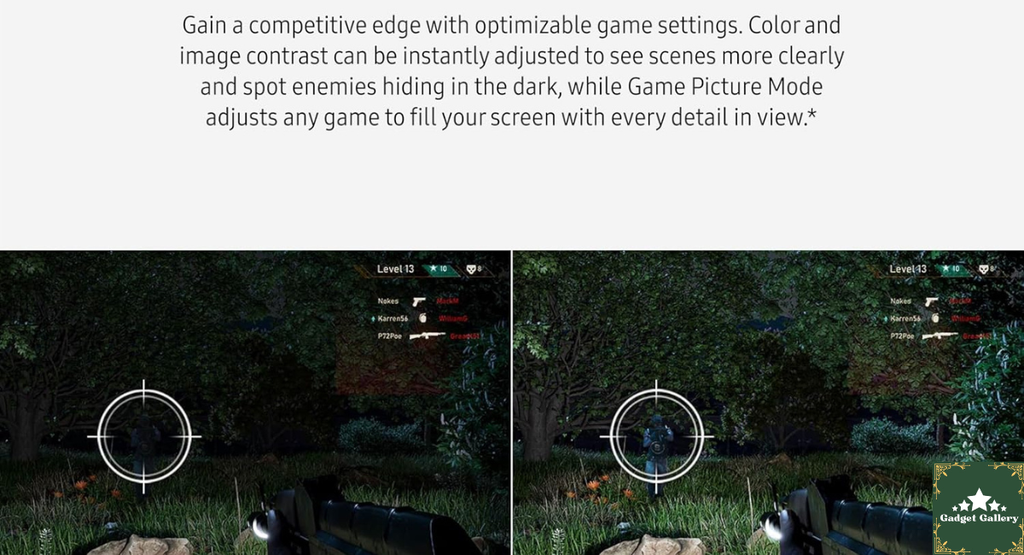
Primarily game and want high refresh rates above 75Hz. The Samsung S40GD is rated at 75Hz — adequate for productivity, not designed for fast-paced gaming. Gaming monitors in the 144-240Hz range serve gaming better than the Samsung S40GD.
Work in a very bright environment with direct sunlight — the Samsung S40GD’s brightness is good for standard office conditions but may struggle in extremely bright spaces without window management.
Pros and Cons
Pros
Borderless three-side design creates genuinely seamless dual-monitor configurations — the Samsung S40GD’s most differentiating feature
Full IPS color accuracy appropriate for all productivity and business use cases with consistently accurate color at wide angles
Complete ergonomic stand covers height, tilt, swivel, and pivot — more than most monitors in the Samsung S40GD’s price category
Integrated USB hub simplifies desk cable management by connecting peripherals to the Samsung S40GD rather than to the laptop
Daisy-chain DisplayPort enables two Samsung S40GD monitors from one PC video output
Eye Saver mode and flicker-free backlight reduce eye fatigue during extended Samsung S40GD sessions
Samsung brand reliability and warranty support — established service network for the Samsung S40GD
VESA compatible for monitor arm mounting if the Samsung S40GD stand is removed
Cons
75Hz refresh rate — the Samsung S40GD is not suitable for gaming that benefits from higher refresh rates
Brightness ceiling — the Samsung S40GD maximum brightness is adequate for standard offices, not for extremely bright environments
No HDR support — the Samsung S40GD doesn’t provide HDR content benefits; not a consideration for its target business use but worth noting
Bottom bezel is slightly thicker than the three borderless sides — the Samsung S40GD is borderless on three sides, not four
USB hub ports on the Samsung S40GD are USB-A — no USB-C passthrough on the hub itself; USB-C connection is for the DisplayPort signal only on some versions
FAQs
Q: Is the Samsung S40GD truly borderless on all four sides? A: The Samsung S40GD is borderless on three sides — left, right, and top. The bottom of the Samsung S40GD has a slightly thicker bezel housing the power indicator and OSD controls. This is standard for borderless business monitors and doesn’t affect the multi-monitor gap performance for which the Samsung S40GD borderless design is intended.
Q: Does the Samsung S40GD work for gaming? A: The Samsung S40GD functions as a gaming display but its 75Hz refresh rate limits competitive gaming performance compared to dedicated gaming monitors at 144Hz or 240Hz. For casual single-player gaming, the Samsung S40GD IPS panel’s color quality is pleasant. For competitive or fast-paced gaming, a higher refresh rate monitor serves better than the Samsung S40GD.
Q: How many monitors can I daisy-chain from one Samsung S40GD connection? A: The Samsung S40GD supports DisplayPort 1.2 daisy-chaining. Two Samsung S40GD monitors can typically be driven from one PC DisplayPort output. More than two monitors in a Samsung S40GD daisy-chain chain depends on your GPU’s multi-display support — check your GPU specifications for maximum display count.
Q: Does the Samsung S40GD USB hub work when connected via HDMI? A: The Samsung S40GD USB hub requires a separate USB-B upstream cable connection from the monitor to your PC (or the USB-C connection that carries both display and data signals, depending on your configuration). The hub functionality is independent of whether you use HDMI or DisplayPort for the Samsung S40GD video signal.
Q: Is the Samsung S40GD suitable for video calls and Zoom meetings? A: Yes — the Samsung S40GD IPS panel’s color accuracy and text clarity make video call interfaces (Zoom, Teams, Google Meet) look clean and professional. Many users connect a webcam to the Samsung S40GD USB hub for a consolidated connection.
Q: What is the Samsung S40GD warranty? A: Samsung typically provides a three-year warranty on the Samsung S40GD business monitor including panel defects. Verify current warranty terms with Samsung or your retailer at time of Samsung S40GD purchase as terms may vary by region.
Final Thoughts
Six months after choosing the Samsung S40GD as the monitor to keep in my dual-display setup, it has done everything a business monitor should do without requiring me to think about it.
The Samsung S40GD borderless design created the seamless dual-monitor environment I wanted. The Samsung S40GD IPS panel is accurate and comfortable across eight-hour work sessions. The Samsung S40GD ergonomic stand accommodated every positioning preference I’ve developed across six months of daily work. The Samsung S40GD USB hub simplified my cable situation more than I expected.
For productivity-focused home office and business users — particularly anyone building a multi-monitor setup where bezel gap is a real concern — the Samsung S40GD business monitor earns its place as one of the cleaner choices in the 24-inch business monitor category.
The Samsung S40GD isn’t a gaming monitor, isn’t an HDR display, and isn’t a professional color-critical tool. For the specific purpose of business and productivity work at a desk over long working days, the Samsung S40GD delivers correctly and consistently.
Where to Buy
🛒 Check Current Samsung S40GD Business Monitor Price on Amazon →
Related Reviews Worth Reading
- Dell 27 Plus Monitor S2725HSM Review — 27-inch competitor in the business monitor category
- Dell SE2726HG 240Hz Gaming Monitor Review — When gaming performance matters alongside productivity
- Samsung Odyssey G5 QHD Review — Samsung’s gaming monitor alternative
- MOKiN 100W 8-in-1 Power Strip Review — Complete your desk cable management
- EMEET C960 1080P Webcam Review — Webcam to pair with your business monitor setup
👉 Subscribe to @5stargadgetgallery on YouTube — Weekly business monitor and home office setup reviews. Subscribe and hit the notification bell so you never miss a Samsung S40GD-level review!
🌐 Start Your Own Business Tech Review Blog
This site runs on Hostinger — the hosting platform powering this review site from the beginning.
- Plans start at $2.99/month
- Free domain for year one
- One-click WordPress installation
- Fast servers for monitor and business tech content
- 24/7 live chat support
Launch your business monitor review blog with Hostinger →
Disclosure: This article contains Amazon Associates affiliate links. As an Amazon Associate I earn from qualifying purchases at no additional cost to you. The Samsung S40GD 24-inch Borderless Business Monitor was personally purchased and used for six months of daily home office work before writing this review. All findings about the Samsung S40GD are entirely my own.