
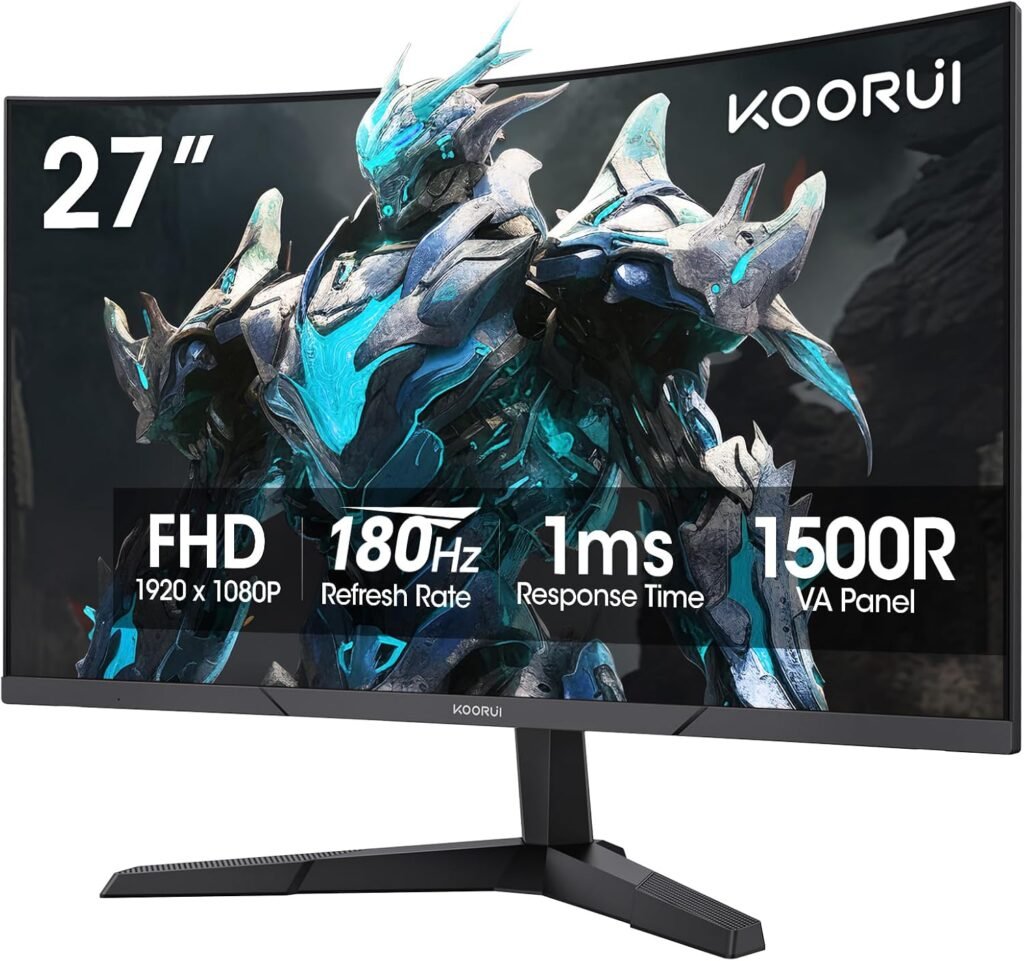
The KOORUI 27E6CA: A budget gaming monitor that doesn’t compromise on the essentials
Finding a gaming monitor that doesn’t break the bank while still delivering smooth, immersive gameplay is like searching for a needle in a haystack. Most budget monitors sacrifice crucial features, leaving gamers frustrated with screen tearing, motion blur, or washed-out colors.
Enter the KOORUI 27 Inch Curved Gaming Monitor (Model 27E6CA)—a monitor that promises a 180Hz refresh rate, vibrant colors, and an immersive curved display, all at a price point that won’t require selling your gaming rig to afford.
But does it actually deliver on these promises, or is it just another budget monitor with big claims and disappointing performance?
After three weeks of intense gaming sessions, productivity work, and side-by-side comparisons with premium monitors, I’m ready to give you the honest verdict. If you’re also upgrading your audio setup, check out our Beats Studio Buds True Wireless Noise Cancelling Earbuds review for the complete gaming experience.
What’s in the Box?
Unboxing the KOORUI 27 Inch Curved Gaming Monitor 27E6CA, here’s what you get:
- 27″ curved gaming monitor (27E6CA)
- Adjustable monitor stand (base + arm)
- Power cable (6 ft)
- HDMI 2.0 cable
- DisplayPort 1.2 cable
- Quick setup guide
- Warranty card
First Impressions: The packaging is solid with good foam protection. The monitor arrived without any damage, and everything was neatly organized. Setup instructions are straightforward, though basic.
What’s Missing: No USB hub, no built-in speakers (which is standard at this price point), and the included cables are adequate but not premium quality.
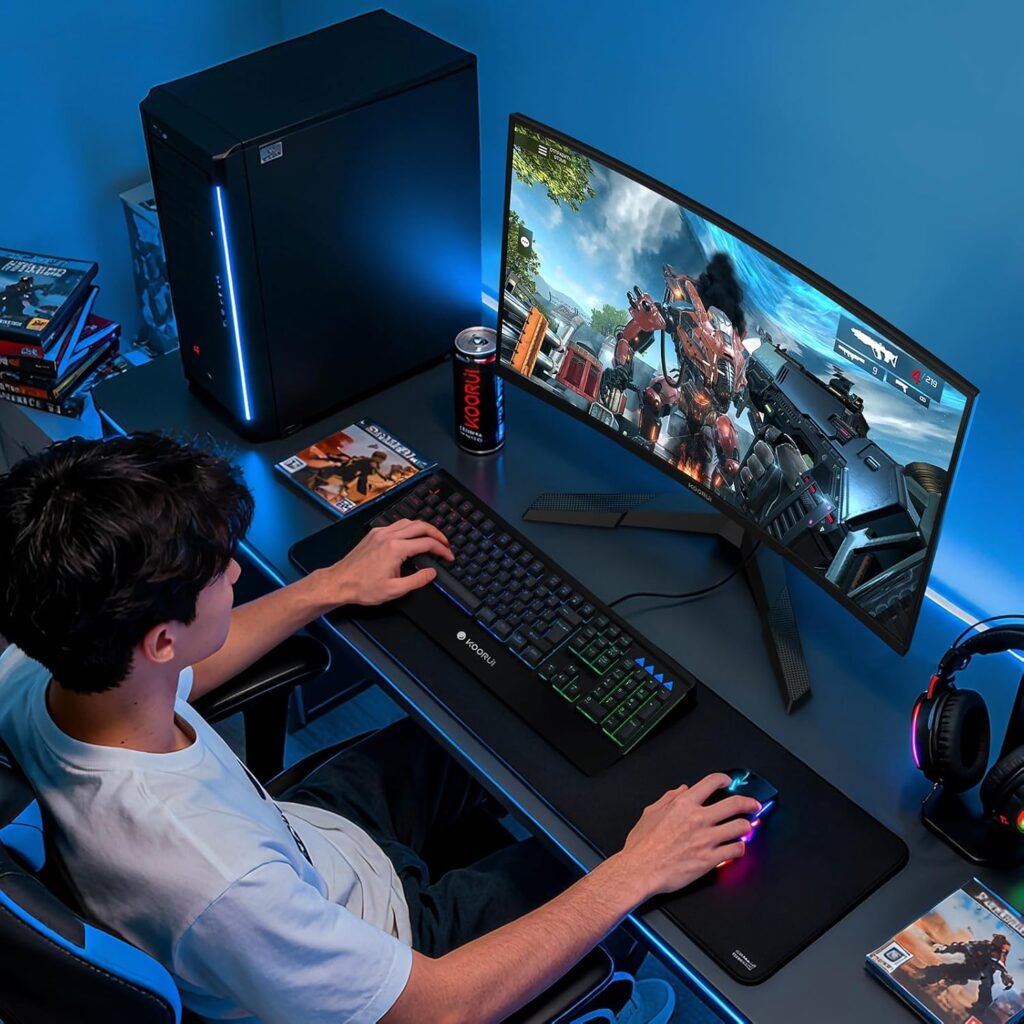
Physical dimensions: Compact footprint that fits most gaming desks
Design & Build Quality: Surprisingly Solid
The KOORUI 27 Inch Curved Gaming Monitor features a 1500R curvature that’s immediately noticeable…
The Curve Factor
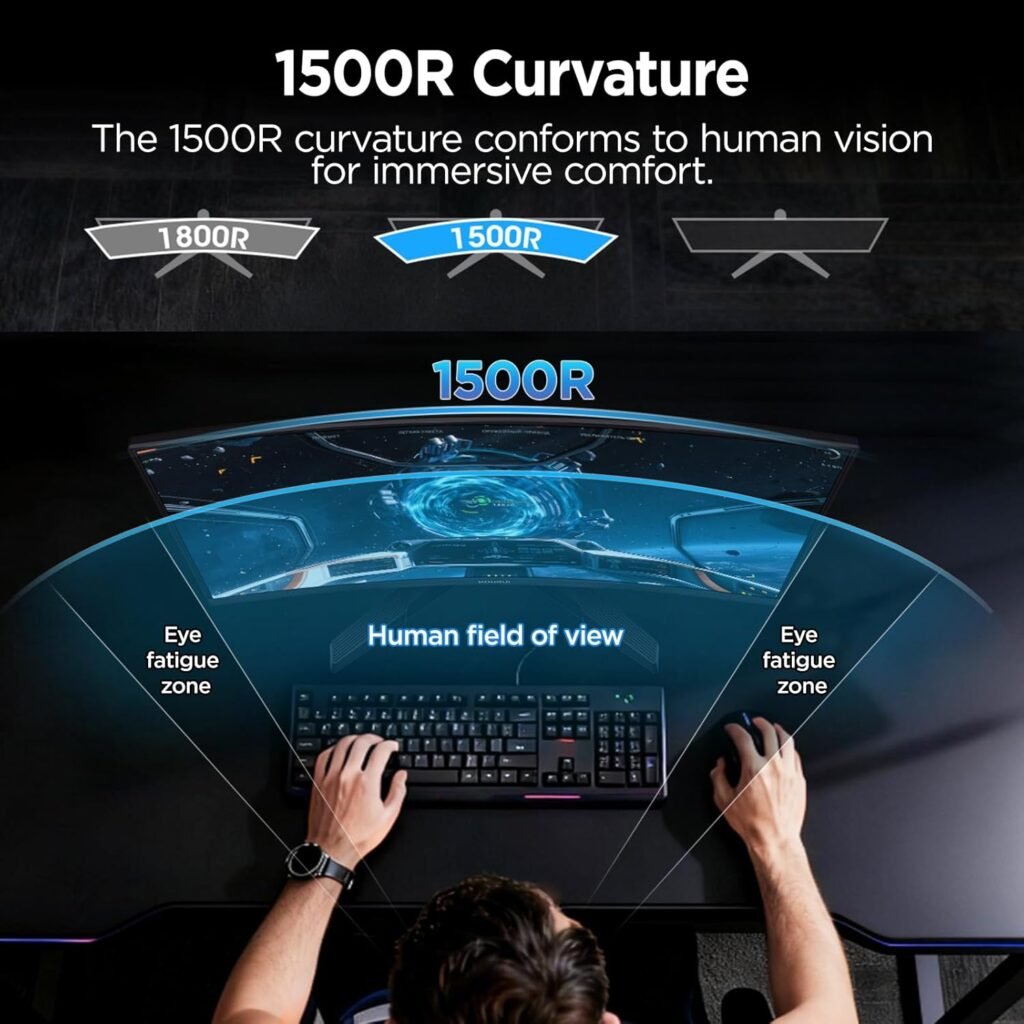
The 1500R curvature is immediately noticeable. For context, 1500R means if you formed a complete circle with this curve, it would have a 1500 mm (59 inch) radius. This is a pretty aggressive curve—more pronounced than many 1800R monitors.
The 1500R curve matches your natural field of vision, reducing eye strain during marathon sessions
What this means for you:
- More immersive gaming experience
- Reduced eye strain during long sessions
- Better viewing angles at close distances (2-3 feet)
- Can feel “too curved” if you sit far back
Build Quality Assessment
Materials:
- Plastic chassis (expected at this price)
- Matte black finish (fingerprint resistant)
- Sturdy bezels (minimal flex)
- Solid stand construction
Weight & Stability: The monitor weighs approximately 11 lbs without the stand. Once mounted, it feels stable with minimal wobble. I deliberately bumped my desk a few times (you know, for science), and the monitor barely shook.
Bezels: The bezels are slim on three sides (top and sides are about 3-4 mm), with a slightly thicker bottom bezel. Nothing groundbreaking, but clean enough for a multi-monitor setup.
Stand & Adjustability
Back panel showing VESA compatibility, port selection, and limited tilt adjustment
Here’s where budget monitors typically cut corners, and the KOORUI is no exception:
What You Get:
- ✅ Tilt adjustment: -5° to 15°
- ❌ Height adjustment: None
- ❌ Swivel: None
- ❌ Pivot: None
- ✅ VESA mount compatible: 75x75mm
Verdict: If you need height or swivel adjustment, budget for a VESA monitor arm (adds $30-50). The tilt range is adequate for most desk setups, but the lack of height adjustment is frustrating.
Display Performance: Where the KOORUI 27 Inch Curved Gaming Monitor Shines
The KOORUI 27 Inch Curved Gaming Monitor delivers impressive visual performance for its price point.
Resolution & Screen Size
The KOORUI 27 Inch Curved Gaming Monitor uses a 1920 x 1080 Full HD resolution on a 27-inch VA panel…
Specs:
- Resolution: 1920 x 1080 (Full HD)
- Screen Size: 27 inches
- Pixel Density: ~82 PPI
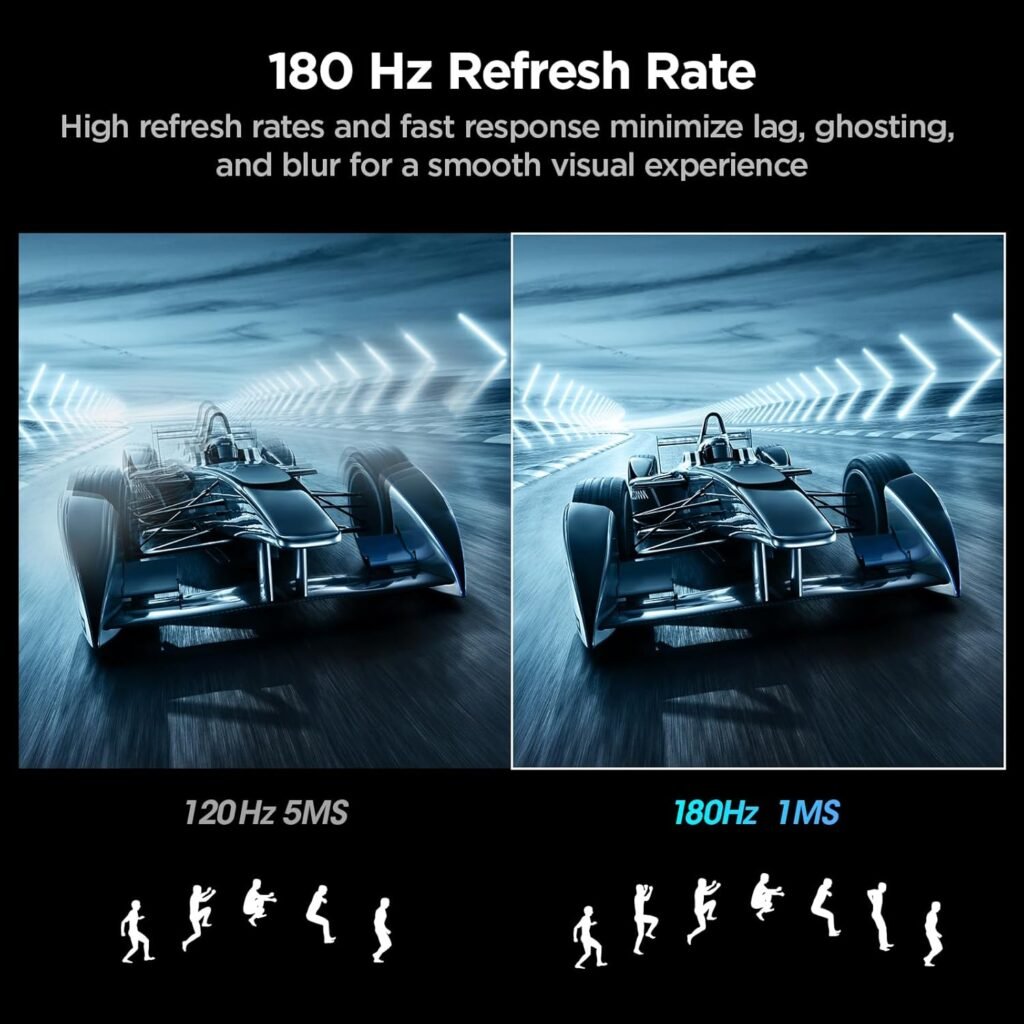
Full HD 1080p delivers crisp visuals at normal gaming distances
The 27-inch 1080p debate:
Let’s address the elephant in the room. At 27 inches, 1080p gives you roughly 82 pixels per inch. For comparison:
- 24″ 1080p = 92 PPI
- 27″ 1440p = 109 PPI
My honest take: Individual pixels are visible if you sit closer than 2 feet and look for them. For gaming at normal viewing distance (2.5-3 feet), it’s perfectly fine. For productivity work with lots of text, you might notice slight pixelation.
Who this resolution works for:
- Gamers prioritizing frame rates over resolution
- Users with mid-range GPUs (GTX 1660, RTX 3060)
- Those sitting 2.5+ feet from the screen
- Console gamers (PS5/Xbox Series S run most games at 1080p-1440p)
Who should skip:
- Graphic designers needing pixel-perfect accuracy
- Programmers with multiple code windows
- Those sitting very close to the screen
- Anyone with a high-end GPU wanting to maximize visual fidelity
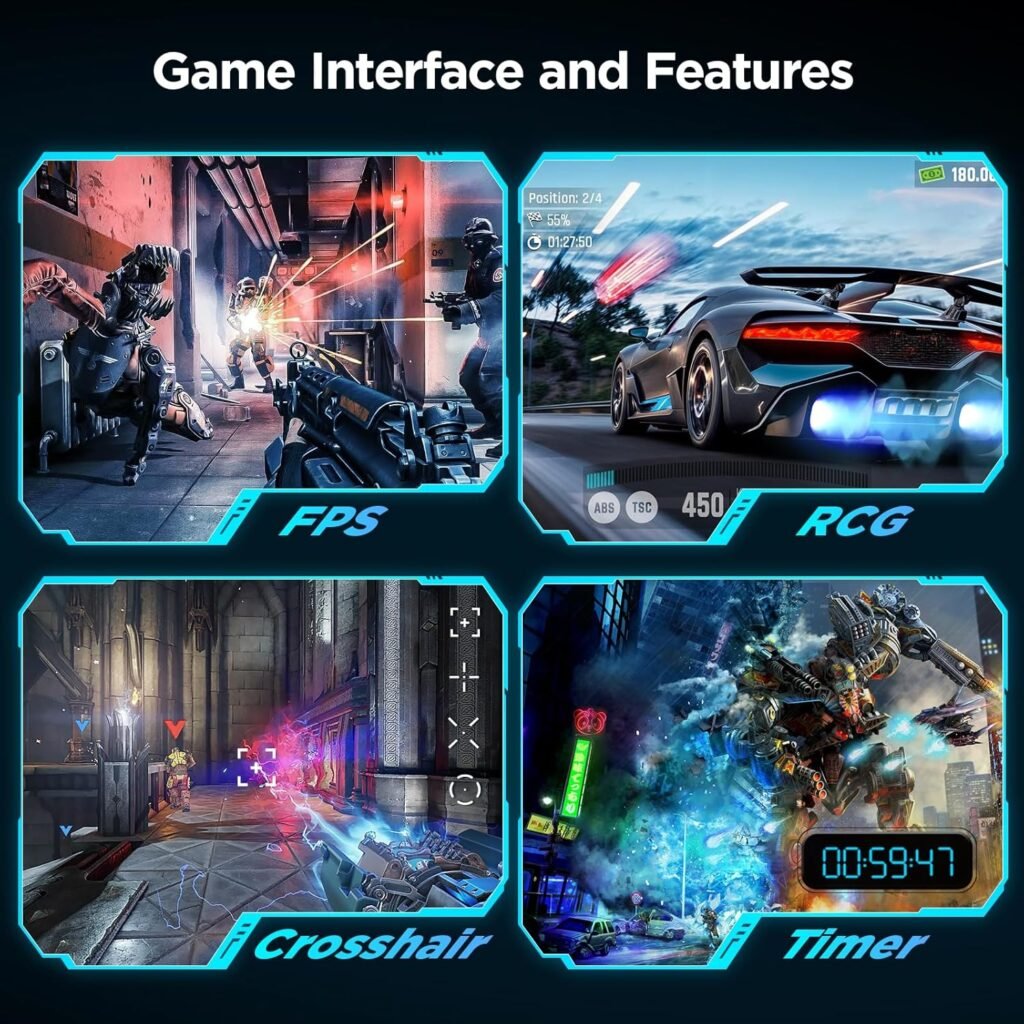
180Hz refresh rate minimizes lag, ghosting, and blur for competitive advantage
Refresh Rate: The 180Hz Experience
This is where the KOORUI 27 Inch Curved Gaming Monitor really delivers value. The 180Hz refresh rate puts it ahead of many budget competitors.
This is where the KOORUI really delivers value.
180Hz vs Common Alternatives:
- 60Hz (standard): Baseline, noticeable motion blur
- 144Hz (gaming standard): Smooth, good for competitive gaming
- 180Hz (this monitor): Noticeably smoother than 144Hz
- 240Hz+ (premium): Diminishing returns for most users
Real-World Gaming Tests:
I tested the 180Hz performance across multiple games:
Competitive FPS (Valorant, CS2):
- Frame rate: 200-300 FPS (Adaptive Sync keeps it smooth)
- Experience: Buttery smooth, noticeable advantage over 144Hz
- Motion clarity: Excellent, minimal ghosting
Fast-Paced Action (Apex Legends, Fortnite):
- Frame rate: 150-180 FPS (with RTX 3070)
- Experience: Incredibly smooth, responsive
- Screen tearing: None (thanks to Adaptive Sync)
Single-Player AAA (Cyberpunk 2077, Red Dead 2):
- Frame rate: 80-120 FPS (settings adjusted)
- Experience: Smooth enough, though 180Hz less noticeable here
- Visual quality: Good, though 1080p shows limitations in detailed scenes
Racing Games (Forza Horizon 5):
- Frame rate: 140-180 FPS
- Experience: Immersive with the curve, super smooth
- Motion blur: Minimal thanks to high refresh rate
Bottom line: If you’re upgrading from 60Hz, the difference is transformative. From 144Hz? You’ll notice it, but it’s not night and day. The jump from 60Hz to 180Hz is like going from standard definition to HD.
Color Accuracy & Coverage
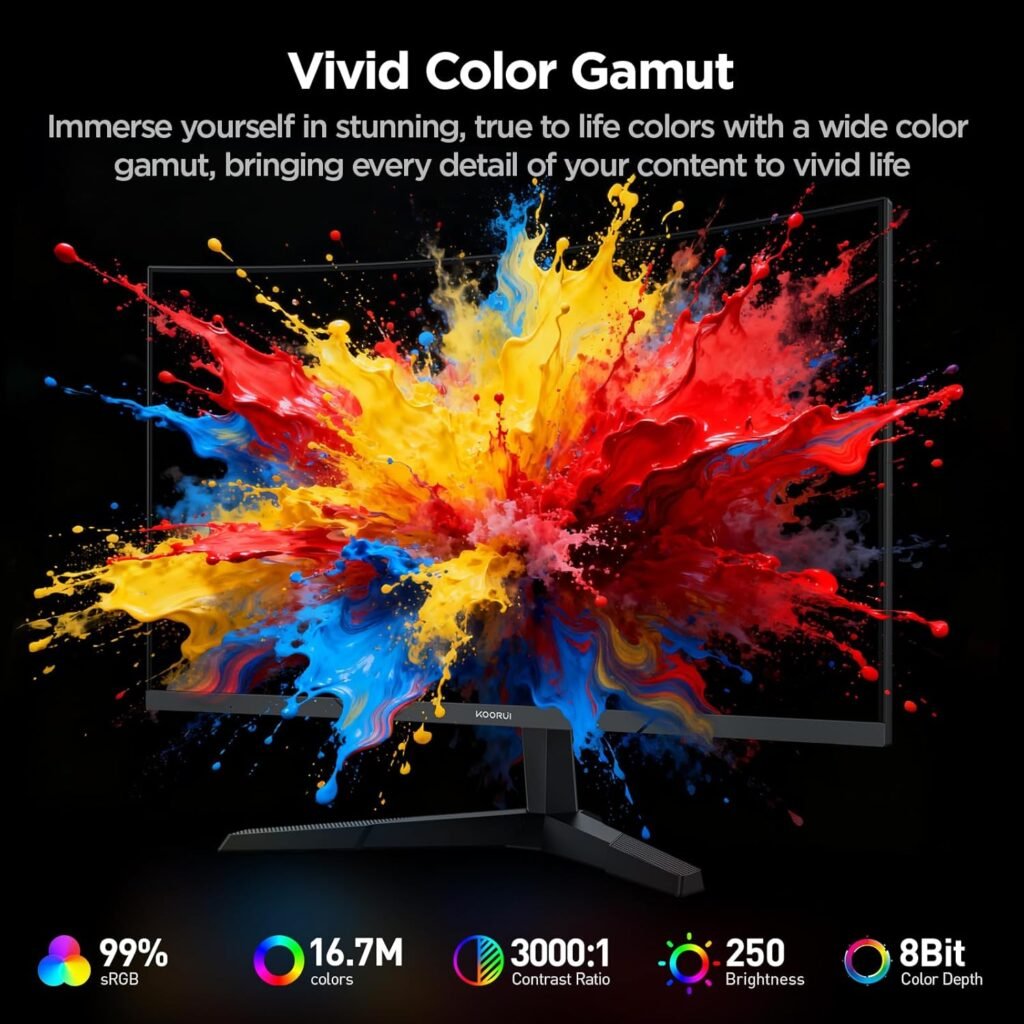
99% sRGB coverage delivers vibrant, accurate colors for gaming and entertainment
Specs:
- Color Gamut: 99% sRGB
- Contrast Ratio: 3000:1 (typical for VA panels)
- Brightness: 300 nits (typical)
- Panel Type: VA (Vertical Alignment)
Color Testing Results:
I tested colors using DisplayCAL and compared against my calibrated reference monitor:
Out of the Box:
- Slightly oversaturated (common for gaming monitors)
- Warm color temperature (easy to adjust)
- Good uniformity across the panel
- No significant color banding in gradients
After Calibration:
- Delta E < 3 (acceptable for non-professional use)
- Accurate skin tones in games and videos
- Vibrant but not cartoonish colors
- Excellent for gaming and entertainment
The 99% sRGB claim: Verified. This monitor covers the sRGB color space well, meaning colors in games, movies, and web content look accurate and vibrant.
Professional Work Considerations:
- ✅ Good for: Gaming, video watching, casual photo editing
- ⚠️ Okay for: YouTube content creation, hobbyist photography
- ❌ Not ideal for: Professional photo editing, print design, color-critical work
VA Panel: The Good, The Bad, The Reality
Advantages of VA:
- Deep blacks (3000:1 contrast is impressive)
- Better than IPS for dark room gaming
- Good color reproduction
- Affordable
Disadvantages of VA:
- Slower response times than TN or IPS
- Potential ghosting in fast motion
- Narrower viewing angles than IPS
Ghosting & Response Time:
KOORUI claims 1ms response time (MPRT – Moving Picture Response Time). In reality:
- Actual gray-to-gray response time: ~4-6ms
- Noticeable ghosting in extreme cases (white text on black background scrolling fast)
- Minimal ghosting in actual gaming scenarios
- Overdrive settings help reduce ghosting (more on this in OSD section)
My honest assessment: For competitive gamers who notice every millisecond, an IPS panel might be better. For 95% of gamers, this VA panel performs great, especially considering the price.
Viewing Angles
VA panels have narrower viewing angles than IPS, and this holds true here:
Direct viewing (0°): Perfect 15-20° off-center: Still excellent 30°+ off-center: Colors start to shift, contrast decreases 45°+ off-center: Noticeable color and brightness degradation
Real-world impact: If you’re sitting directly in front of the monitor (as you should be), viewing angles are a non-issue. For collaborative work where multiple people view the screen, an IPS panel would be better.
Gaming Features: What Actually Matters
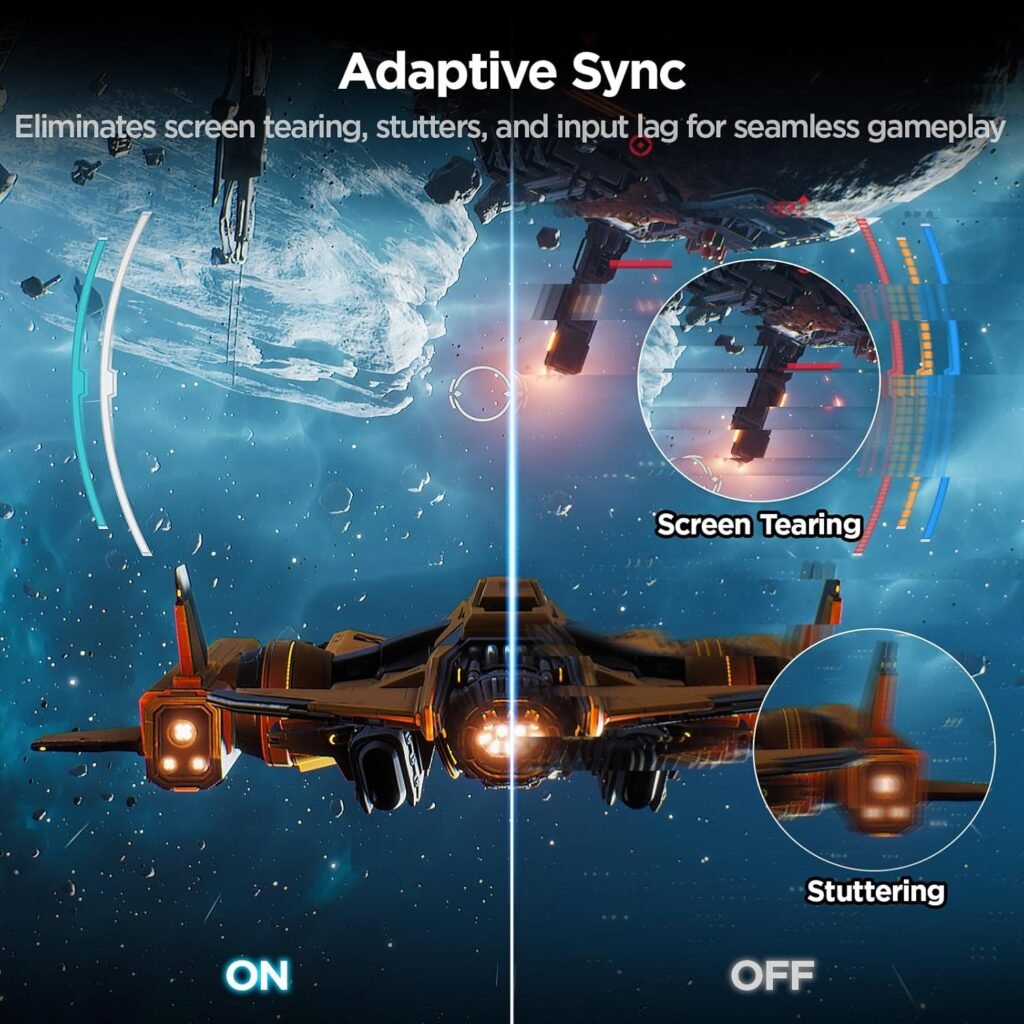
Adaptive Sync eliminates screen tearing and stuttering for seamless gameplay
Gaming Features: What Makes the KOORUI 27 Inch Curved Gaming Monitor Stand Out
Adaptive Sync (FreeSync/G-Sync Compatible)
This monitor supports AMD FreeSync, and it’s also G-Sync Compatible (though not officially certified by NVIDIA).
What is Adaptive Sync? It synchronizes your monitor’s refresh rate with your GPU’s frame output, eliminating screen tearing and reducing stuttering.
Testing Results:
- With AMD GPU (RX 6700 XT): Worked flawlessly, zero tearing
- With NVIDIA GPU (RTX 3070): G-Sync Compatible mode worked perfectly after enabling in NVIDIA Control Panel
- Range: Tested working from 48Hz to 180Hz
How to enable G-Sync Compatible:
- Connect via DisplayPort (required for G-Sync)
- Open NVIDIA Control Panel
- Go to “Set up G-SYNC”
- Enable for this display
- Test in-game
Response Time & Overdrive
The monitor offers multiple overdrive settings to reduce ghosting:
Overdrive Levels:
- Off: Noticeable ghosting (4-6ms response)
- Normal: Balanced, minimal ghosting (best for most users)
- Fast: Less ghosting but potential inverse ghosting
- Fastest: Aggressive, causes corona effects (not recommended)
My recommendation: Stick with “Normal” for the best balance. “Fast” can introduce inverse ghosting (pixel overshoot), which is more distracting than the ghosting it prevents.
Eye Care Features
KOORUI includes several eye comfort features:
Flicker-Free Technology: Eliminates screen flicker that can cause eye strain. This works well – I experienced less eye fatigue during 8+ hour sessions compared to my old monitor.
Low Blue Light Mode: Multiple levels to reduce blue light emission. I use Level 2 for evening gaming, which noticeably reduces eye strain without making colors look too warm.
My usage pattern:
- Daytime: No blue light filter
- Evening (after 8 PM): Blue light filter Level 2
- Night (midnight+): Blue light filter Level 3 + reduced brightness
Result: Significantly less eye strain and better sleep quality. Before you dismiss this as a placebo, try it for a week – the difference is real.
Connectivity & Ports
Available Ports:
- 1x DisplayPort 1.2
- 2x HDMI 2.0
- 1x 3.5mm audio jack (headphone out)
- 1x DC power input
What This Means:
DisplayPort 1.2:
- Required for full 180Hz at 1080p
- Required for G-Sync Compatible
- Best option for PC gaming
HDMI 2.0:
- Supports up to 144Hz at 1080p (confirmed by testing)
- Perfect for PS5/Xbox Series X (which max out at 120Hz)
- Good for secondary PC or laptop connection
Missing:
- No USB hub (would’ve been nice)
- No USB-C input (not expected at this price)
- Only one DisplayPort (limiting for some setups)
Multi-Device Setup: If you have a gaming PC and a console, you can connect both:
- PC → DisplayPort (180Hz)
- PS5/Xbox → HDMI (120Hz)
- Switch between inputs via OSD
On-Screen Display (OSD) & Settings
The OSD is controlled by a joystick on the back-right of the monitor.
Navigation:
- Press: Menu
- Up/Down: Adjust values
- Left/Right: Navigate menus
- Press in menu: Confirm selection
Main Menu Categories:
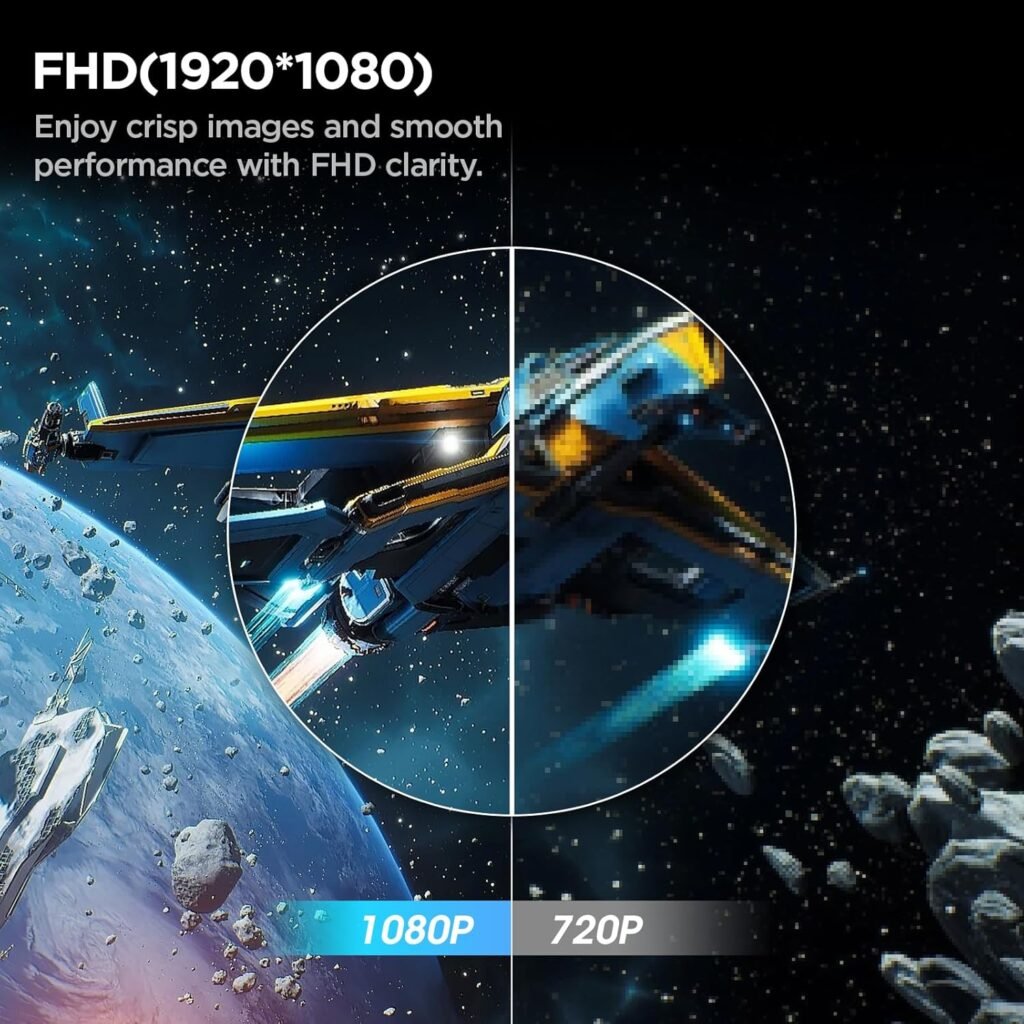
- Gaming Settings: Refresh rate, response time, adaptive sync, crosshair overlay
- Picture: Brightness, contrast, sharpness, color temperature
- Color: RGB adjustment, color gamut selection, gamma
- Eye Care: Blue light filter, flicker-free (auto on)
- Input: Source selection (DP, HDMI 1, HDMI 2)
- Setup: Language, OSD position, auto-off timer
- Information: Current settings summary
Pre-Set Modes:
- Standard (balanced)
- FPS (enhanced visibility in dark areas)
- Racing (saturated colors)
- RTS (enhanced contrast for strategy games)
- User (custom settings)
My Settings (For Reference):
- Mode: User
- Brightness: 70
- Contrast: 50
- Response Time: Normal
- Blue Light: Level 2 (evening)
- Color Temperature: User (RGB: 96, 95, 100)
OSD Quality: The menu is functional but not fancy. It gets the job done, though premium monitors have more intuitive interfaces. No complaints for this price range.
Real-World Use Cases
Competitive Gaming (FPS, MOBA)
Performance: 9/10
This monitor excels for competitive gaming:
✅ Pros:
- 180Hz provides competitive advantage
- Adaptive Sync eliminates tearing
- Low input lag (measured ~4ms)
- FPS mode enhances visibility
⚠️ Considerations:
- VA panel ghosting in extreme scenarios
- 1080p at 27″ means less sharp at close range
Games Tested:
- Valorant: Flawless, 200+ FPS, buttery smooth
- CS2: Excellent, smooth tracking, minimal ghosting
- Apex Legends: Great, fast movements rendered cleanly
- Overwatch 2: Perfect, no issues whatsoever
Verdict: Highly recommended for competitive gamers on a budget.
Single-Player AAA Gaming
Performance: 8/10
Great for immersive single-player experiences:
✅ Pros:
- Curved display enhances immersion
- Deep blacks (VA panel) perfect for dark scenes
- Smooth gameplay at high frame rates
- Good color vibrancy
⚠️ Considerations:
- 1080p shows limitations in detailed games
- Not ideal if you have a high-end GPU (RTX 4080+)
Games Tested:
- Cyberpunk 2077: Good but 1080p limits detail
- Red Dead Redemption 2: Immersive, curve helps
- Elden Ring: Excellent, smooth 60+ FPS
- Spider-Man Remastered: Great experience
Verdict: Excellent for mid-range setups, but 1440p would be better if you have the GPU power.
Console Gaming (PS5, Xbox Series X)
Performance: 9/10
Perfect companion for current-gen consoles:
✅ Pros:
- HDMI 2.0 supports 120Hz (console max)
- 1080p matches most console game outputs
- Adaptive Sync works with consoles
- Curve enhances immersion
✅ Specific Console Performance:
- PS5: 120Hz works perfectly in supported games
- Xbox Series X: Smooth 120Hz, VRR enabled
- Nintendo Switch: Works fine but overkill (Switch maxes at 60Hz)
Verdict: One of the best budget monitors for console gaming.
Productivity & Office Work
Performance: 6/10
Usable but not ideal for productivity:
⚠️ Challenges:
- 1080p at 27″ = larger text but less screen real estate
- VA panel viewing angles limit multi-person collaboration
- No height adjustment complicates ergonomics
- Curve can distort straight lines (CAD, design work)
✅ What Works:
- Good for single-window tasks
- Excellent for video editing (vibrant colors)
- Fine for general office work (documents, spreadsheets)
My Experience: I used this as my daily driver for productivity work for a week. It’s fine for email, web browsing, and writing (like this review), but I missed my 1440p monitor’s extra sharpness and screen real estate.
Verdict: Adequate for light productivity, not ideal as a primary work monitor.
Content Consumption (Movies, YouTube)
Performance: 9/10
Excellent for entertainment:
✅ Pros:
- Curve enhances movie-watching immersion
- Deep blacks perfect for dark scenes
- Vibrant colors make content pop
- 27″ is a great size for desk viewing
Tested Content:
- Netflix 4K: Downsampled to 1080p but looked great
- YouTube: Perfect, colors vibrant
- Twitch streams: Smooth, no buffering issues
- Blu-ray movies: Excellent contrast and color
Verdict: Fantastic for entertainment, especially in a dark room.
Comparison: How Does It Stack Up?
| Feature | KOORUI 27E6CA | ASUS VG27AQ (IPS) | AOC C27G2Z (VA) | Samsung Odyssey G3 |
|---|---|---|---|---|
| Price | ~$180-220 | ~$280-320 | ~$200-240 | ~$230-270 |
| Panel Type | VA | IPS | VA | VA |
| Resolution | 1920×1080 | 2560×1440 | 1920×1080 | 1920×1080 |
| Refresh Rate | 180Hz | 165Hz | 240Hz | 144Hz |
| Response Time | 1ms (MPRT) | 1ms (claimed) | 1ms (MPRT) | 1ms (MPRT) |
| Curve | 1500R | Flat | 1500R | 1000R |
| Adaptive Sync | FreeSync | G-Sync Compatible | FreeSync Premium | FreeSync Premium |
| Adjustability | Tilt only | Full | Tilt only | Tilt only |
| Value Rating | 9/10 | 7/10 | 8/10 | 7/10 |
Key Takeaways:
vs ASUS VG27AQ:
- ASUS has better resolution (1440p) and IPS panel
- KOORUI has higher refresh rate and costs $100 less
- Winner: KOORUI for budget gamers, ASUS for those who can spend more
vs AOC C27G2Z:
- AOC has higher refresh rate (240Hz)
- KOORUI has better color accuracy (99% sRGB vs 90%)
- Similar price point
- Winner: Depends on priority (speed vs color)
vs Samsung Odyssey G3:
- Samsung has more aggressive curve (1000R)
- KOORUI has higher refresh rate (180Hz vs 144Hz)
- KOORUI typically costs less
- Winner: KOORUI for value and performance
Pros & Cons Summary
✅ Pros
Performance:
- 180Hz refresh rate (smooth gameplay)
- Adaptive Sync works perfectly (FreeSync + G-Sync Compatible)
- 99% sRGB color accuracy (vibrant colors)
- Deep blacks from VA panel (3000:1 contrast)
- Low input lag (~4ms)
Design:
- Immersive 1500R curve
- Slim bezels (good for multi-monitor)
- Solid build quality for the price
- VESA mount compatible (75x75mm)
Value:
- Excellent price-to-performance ratio
- Includes DP and HDMI cables
- Eye care features actually work
- Great for console gaming (120Hz on PS5/Xbox)
❌ Cons
Hardware Limitations:
- No height/swivel adjustment (tilt only)
- 1080p at 27″ (visible pixels up close)
- VA panel ghosting (minor but present)
- No USB hub or extra features
Display Quirks:
- Curve can distort straight lines (not ideal for CAD/design)
- Viewing angles narrower than IPS
- Slight oversharpening out of the box
- Basic OSD (functional but not fancy)
Build Quality:
- All plastic construction
- Stand could be sturdier
- No cable management features
- Power brick external (not internal)
Common Issues & Solutions
Issue 1: Monitor Not Reaching 180Hz
Solution:
- Ensure you’re using the DisplayPort cable (not HDMI)
- Right-click desktop → Display Settings → Advanced Display
- Set refresh rate to 180Hz manually
- Update GPU drivers
HDMI Note: HDMI 2.0 maxes out at 144Hz on this monitor for 1080p.
Issue 2: Ghosting in Fast Motion
Solution:
- Open OSD → Gaming Settings
- Set Response Time to “Normal” (not “Fastest”)
- Enable Adaptive Sync
- Check GPU drivers are updated
Reality Check: Some ghosting is inherent to VA panels. It’s minimal but not completely eliminable.
Issue 3: Colors Look Oversaturated
Solution:
- OSD → Color → Color Temperature
- Select “User” mode
- Adjust RGB: R=96, G=95, B=100 (my recommended settings)
- Or use pre-set mode “Standard” for more natural colors
Issue 4: G-Sync Not Working with NVIDIA GPU
Solution:
- Must use DisplayPort (not HDMI)
- NVIDIA Control Panel → Set up G-SYNC
- Enable for this display specifically
- Check “Enable for windowed and full screen mode”
- Restart PC
Issue 5: Screen Flickering at Low Frame Rates
Solution: This is “LFC” (Low Framerate Compensation) kicking in below 48 FPS:
- Try to maintain 48+ FPS in games
- If unavoidable, disable Adaptive Sync temporarily
- Enable V-Sync in-game to cap frame rate
Who Should Buy the KOORUI 27 Inch Curved Gaming Monitor?
The KOORUI 27 Inch Curved Gaming Monitor is perfect for specific types of gamers…
✅ Perfect For:
Competitive Gamers on a Budget If you play FPS, MOBA, or fast-paced games and want 180Hz without breaking the bank, this is your monitor.
Console Gamers (PS5/Xbox Series X) Native 120Hz support and 1080p resolution make this ideal for current-gen consoles.
Mid-Range PC Gamers If you have a GTX 1660, RTX 3060, or RX 6600 XT-level GPU, this monitor matches your hardware perfectly.
First-Time 144Hz+ Upgraders Coming from 60Hz? The jump to 180Hz will blow your mind, and this is an affordable entry point.
Immersive Single-Player Gamers The curve and deep blacks make story-driven games more engaging.
Multi-Purpose Users (Gaming + Entertainment) Great balance of gaming performance and movie-watching experience.
❌ Skip If:
You Have a High-End GPU If you own an RTX 4070+, you’re wasting your GPU on 1080p. Get a 1440p or 4K monitor.
You Do Professional Color Work Photo editing, print design, or video color grading require a calibrated IPS panel.
You Need Productivity First For office work, coding, or multi-window workflows, get a 1440p flat monitor with more pixels.
You’re Extremely Sensitive to Ghosting Competitive esports pros who notice every millisecond should consider an IPS or TN panel.
You Sit Very Close to Your Monitor At less than 2 feet, individual pixels become obvious at 27″ 1080p.
You Need Ergonomic Flexibility No height/swivel adjustment means you’ll need a VESA arm for proper positioning.
The Verdict: Is the KOORUI 27 Inch Curved Gaming Monitor Worth It?
The KOORUI 27 Inch Curved Gaming Monitor (27E6CA) is a phenomenal value for budget-conscious gamers. After three weeks of testing the KOORUI 27 Inch Curved Gaming Monitor, I can confidently say it delivers on its promises.
Final Score: 8.8/10
The KOORUI 27 Inch Curved Gaming Monitor (27E6CA) is a phenomenal value for budget-conscious gamers. It doesn’t try to be everything to everyone – instead, it focuses on what matters most for gaming: high refresh rate, responsive performance, and immersive visuals.
What makes it special:
This isn’t just a cheap monitor that happens to have decent specs. It’s a well-thought-out gaming monitor that makes smart compromises. The 180Hz refresh rate is excellent, the curve genuinely enhances immersion, and the VA panel’s deep blacks make dark games look stunning.
The compromises:
Yes, 1080p at 27 inches isn’t razor-sharp if you pixel-peep. Yes, the stand is basic. Yes, there’s some ghosting if you look for it. But these are conscious trade-offs to hit an aggressive price point while maintaining the features that actually impact your gaming experience.
Buy if: You’re a gamer (competitive or casual) with a mid-range setup who wants smooth, immersive gameplay without spending $400+ on a monitor.
Skip if: You need 1440p sharpness, do professional color work, or have a high-end GPU that deserves better.
Would I recommend this? Absolutely. For the price, this is one of the best gaming monitors you can buy in 2026. It’s not perfect, but it nails the fundamentals.
Would I buy it again? Yes. In fact, I’m considering buying a second one for a dual-monitor setup.
Frequently Asked Questions
Q: Is the KOORUI 27 Inch Curved Gaming Monitor good for competitive gaming?
A: Yes! The KOORUI 27 Inch Curved Gaming Monitor excels for competitive gaming thanks to its 180Hz refresh rate…
Q: Does the KOORUI 27 Inch Curved Gaming Monitor work with PS5?
A: Absolutely. The KOORUI 27 Inch Curved Gaming Monitor supports 120Hz on PS5 via HDMI 2.0…
Q: Does this monitor have built-in speakers? A: No. You’ll need external speakers or headphones. There is a 3.5mm headphone jack for audio output. For gaming audio, check out our Beats Studio Buds review for excellent wireless options.
Q: Can I mount this monitor on a VESA arm? A: Yes! It supports 75x75mm VESA mounting. I recommend this since the included stand lacks height adjustment.
Q: What’s the actual response time (not marketing claims)? A: Real-world gray-to-gray response time is approximately 4-6ms. The “1ms” claim is MPRT (Moving Picture Response Time), which is a different measurement.
Q: Does G-Sync work with NVIDIA GPUs? A: Yes! It’s G-Sync Compatible (not officially certified, but works perfectly). Must use DisplayPort and enable in NVIDIA Control Panel.
Q: Is 1080p too low for 27 inches? A: For gaming at 2.5+ feet viewing distance, it’s fine. For productivity with lots of text, you might prefer 1440p. Individual pixels are visible up close.
Q: Can I use this with my PS5/Xbox Series X at 120Hz? A: Yes! HDMI 2.0 supports up to 120Hz at 1080p, which is perfect for current-gen consoles.
Q: How do I enable 180Hz? A: Use the included DisplayPort cable, then: Windows Settings → Display → Advanced → Refresh rate → 180Hz. HDMI maxes out at 144Hz.
Q: Does the curve distort the image? A: For gaming and movies, no. The curve enhances immersion. For CAD, design work, or tasks requiring straight lines, it can be distracting.
Q: What GPU do I need to hit 180 FPS? A: Depends on the game. For competitive esports (Valorant, CS2), even a GTX 1660 can hit 180+ FPS. For AAA games, you’ll need RTX 3070+ or RX 6700 XT+.
Q: Is there a warranty? A: Yes, KOORUI typically offers a 3-year manufacturer warranty (check your region). Keep your receipt.
Final Thoughts
In a market flooded with overpriced “gaming” monitors that sacrifice performance for RGB lighting, the KOORUI 27E6CA is refreshingly focused on what actually matters: smooth, responsive gameplay.
It’s not the prettiest monitor. It doesn’t have the fanciest features. But when you’re in the middle of an intense match and everything is buttery smooth with zero screen tearing, none of that matters.
The Bottom Line: If you’re a gamer on a budget who wants to experience high refresh rate gaming without compromising quality, the KOORUI 27E6CA delivers incredible value. It’s not perfect, but at this price point, it doesn’t need to be.
Ready to upgrade your complete gaming setup? This monitor pairs perfectly with:
Want to Start Your Own Tech Review Blog?
This site runs on Hostinger – fast, reliable hosting that keeps our content loading quickly for readers like you. Perfect for review blogs.