There is a specific kind of frustration that comes from losing a close game and not being entirely sure if it was your fault or your equipment’s.
About eight months ago I was playing Elden Ring—not a competitive game, I know—but I was in a late-game area with dense, detailed environments, and I kept missing platforms in a section that required precise jumps. I assumed I was just bad at the section. I tried it maybe twelve times across two evenings.
Then a friend watched me play on Discord and shared and said something that stuck: “Your screen looks really flat. Like, the depth perception seems off.”
I was on a 1080p flat panel monitor I’d owned for four years. It looked fine to me because I hadn’t seen anything better in a long time.
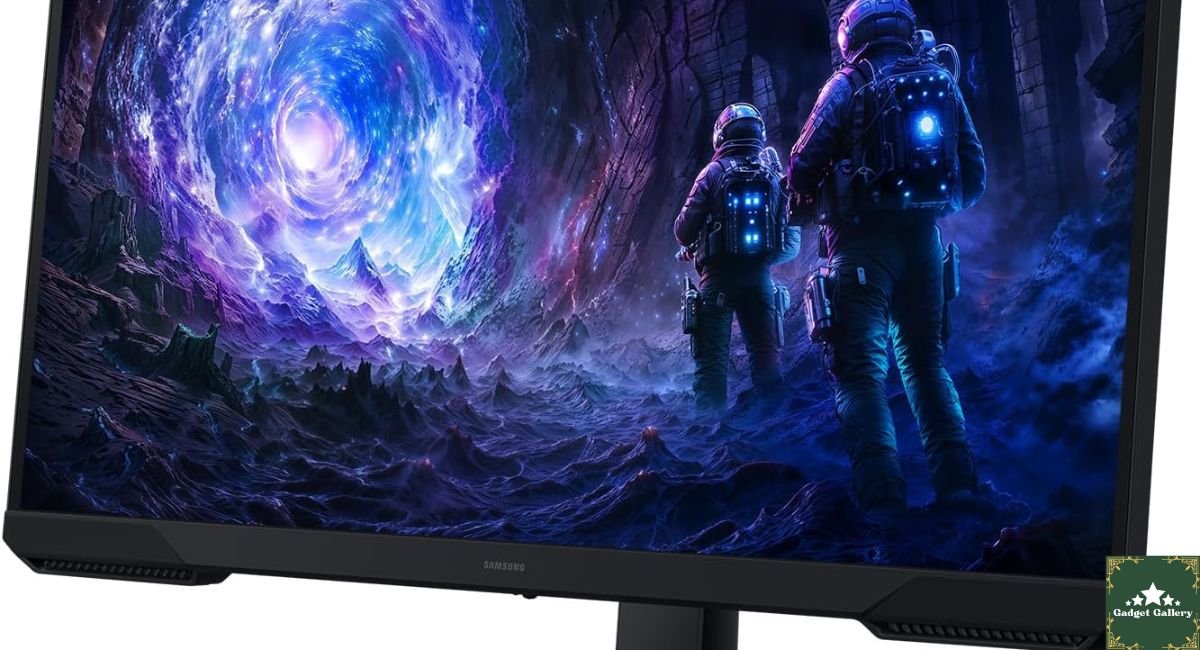
Two weeks later I had the Samsung 27-inch Odyssey G5 G51F QHD gaming monitor on my desk. I passed that Elden Ring section on the second attempt after switching.
That might be coincidence. Or it might be exactly what a 2560×1440 curved QHD display does differently.
Six months later, I can tell you which one it was.
Why 1440P Changes More Than You’d Think
Most people shopping for a monitor upgrade from 1080p focus on the refresh rate number. I did too, originally. 144 Hz, 165 Hz, and 240 Hz—the refresh rate conversation dominates gaming monitor discussions.
What I wasn’t prepared for was how much the resolution upgrade would matter.
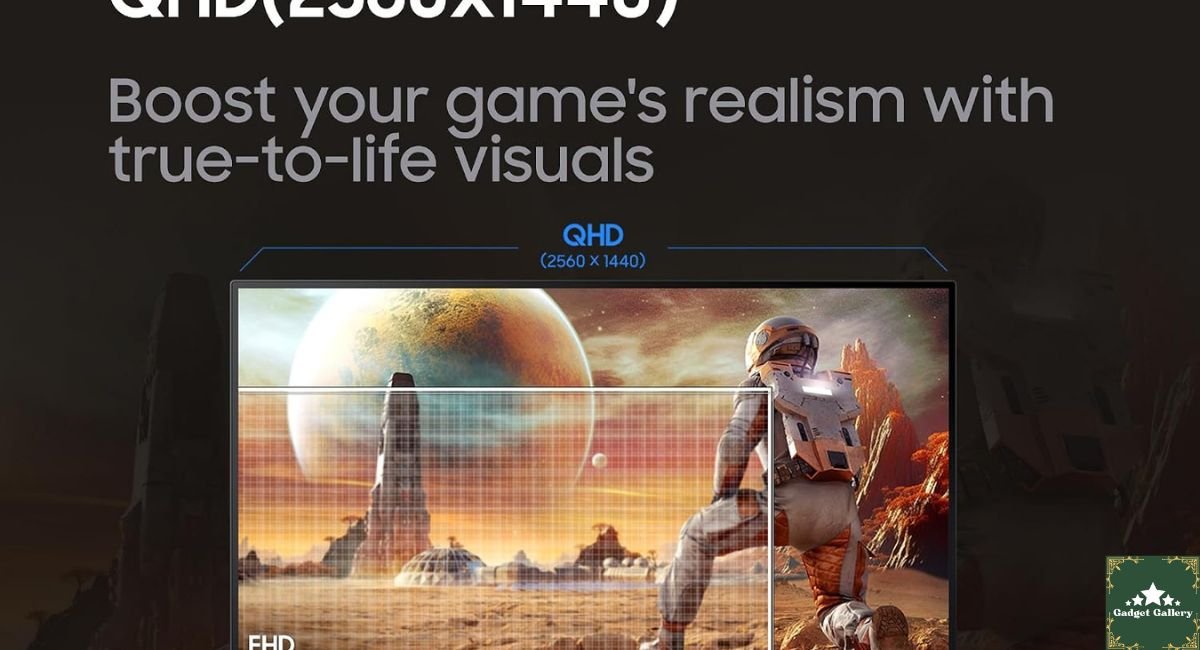
Going from 1920×1080 to 2560×1440 on a 27-inch panel adds 78% more pixels. The practical effect isn’t that things look “sharper” in some abstract sense. It’s that fine detail that was previously a smear that becomes readable. Distant enemies in games have actual edges. Text in UI elements is crisp without anti-aliasing blur. Textures on surfaces resolve rather than blending into approximations.
For gaming specifically, more pixel detail means better spatial awareness. You see things at the edges of your view more clearly. You notice distant movement more accurately. For any game where seeing clearly across distance matters—open-world games, shooters, strategy games—QHD versus FHD is a genuine gameplay improvement, not just an aesthetic one.
The Elden Ring situation wasn’t a fluke. Depth perception in games is partly determined by how accurately you can read visual cues in the image. More resolution means more accurate visual information.
First Impressions: Unboxing and Setup
The Odyssey G5 comes partially assembled. The stand base attaches to the stand neck with a single screw—no tools required, takes about three minutes. The neck clicks into the monitor back securely.
The first thing you notice is the curve. The 1000R curvature on the Odyssey G5 is aggressive by monitor standards. 1000R means the curve radius is 1000 mm—essentially, the panel curves to match the approximate radius of the human eye’s focal range. When you sit at normal viewing distance (60-70 cm), the edges of the screen are equidistant from your eyes rather than further away as they would be on a flat panel.
My first reaction was that it looked strange. After three days, flat monitors started looking strange instead. The curve is one of those adjustments that happens invisibly—you stop noticing it and just experience the benefit.
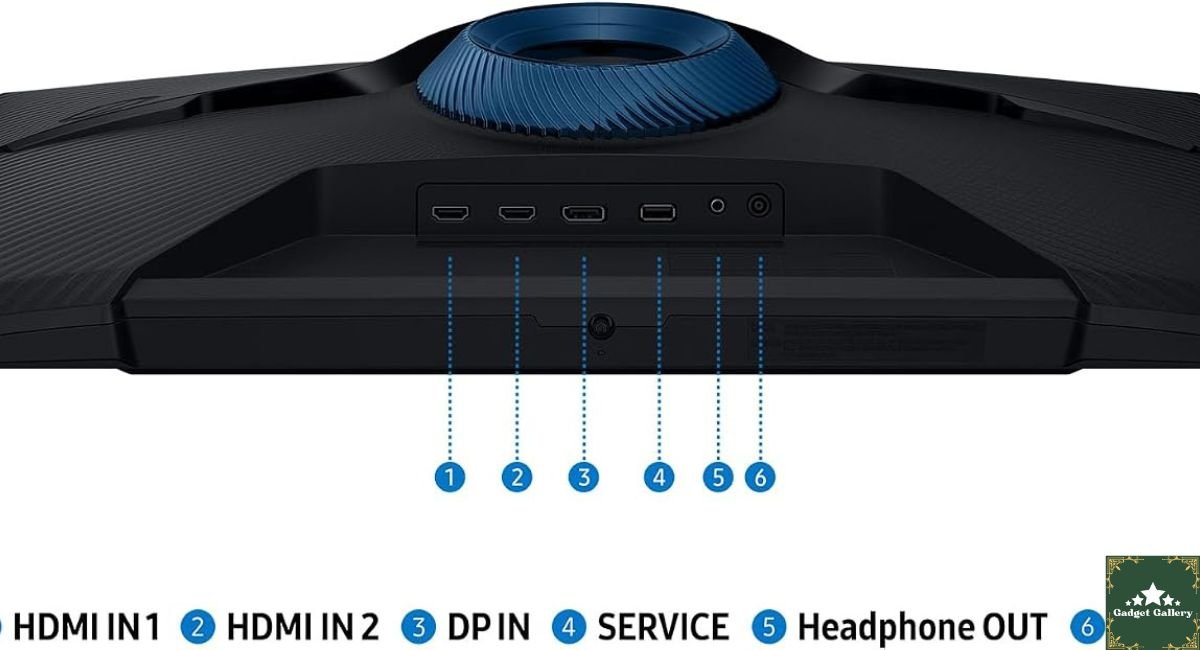
Setup for 165Hz: The monitor connected via DisplayPort to my PC. Go to Windows Display Settings → Advanced Display → choose 165 Hz from the refresh rate dropdown. If you only see 60 Hz listed, check that you’re using a DisplayPort 1.2+ cable—HDMI 2.0 supports up to 144 Hz on this monitor, but DisplayPort unlocks the full 165 Hz.
I made this mistake on day one. Used an HDMI cable from my cable box, got 60 Hz, and assumed something was wrong with the monitor. Switching to DisplayPort took 30 seconds and immediately gave me 165Hz in the dropdown.
The 165Hz Curved VA Panel: Gaming Reality
The Odyssey G5 uses a VA (Vertical Alignment) panel rather than the IPS panels found in many competitors at this price range. This is a deliberate trade-off worth understanding.
VA panels versus IPS at the same price:
VA produces deeper, more accurate black levels than IPS. In dark gaming environments—horror games, nighttime scenes, space games—the contrast is visibly better on VA. Shadows look dark, not dark gray. This matters enormously for immersion in atmospheric games.
VA also tends toward better color saturation than IPS—the Odyssey G5’s colors are rich and punchy, particularly in games with vivid art styles.
The trade-off: VA panels have slower pixel response times than IPS, which can create ghosting artifacts during very fast motion. The Odyssey G5 has some ghosting visible during extreme camera panning in fast-paced games—visible on a completely black screen with a white object moving quickly, less visible in actual game content.
In six months of gaming across different genres:
Elden Ring, Baldur’s Gate 3, and Cyberpunk 2077—all atmospheric, contrast-dependent games—the VA panel is excellent. Dark scenes genuinely look dark. The visual quality is clearly better than my previous IPS 1080p monitor in these environments.
Valorant and Apex Legends—fast-paced FPS games—the ghosting is occasionally noticeable at 165 Hz during the very fastest panning. It’s not game-breaking and doesn’t appear during regular gunfights. It’s visible if you’re specifically looking for it.
For the mix of games I play, the VA panel is the right choice. If I played exclusively fast-paced competitive FPS and nothing else, an IPS panel like the Dell SE2726HG might serve better. For mixed gaming across different genres, VA at 1440P makes more sense.
The 1000R Curve: More Useful Than I Expected
I was skeptical about aggressive monitor curves before using one. Curved monitors seemed like a design statement rather than a functional improvement.
Six months of daily use changed that assessment for a specific reason I didn’t anticipate.
A flat 27-inch QHD panel, when you sit at normal viewing distance, has corners that are measurably further from your eyes than the center. The difference is small, but it means the corners appear at slightly different focus than the center content. On a 27-inch panel, this is subtle. On a 34-inch ultrawide, it’s very noticeable.
The 1000R curve keeps the entire screen surface at approximately the same distance from your eyes. The result isn’t just that it looks wrapped — it’s that you can read content at the edges of the screen with the same focus clarity as the center. For games with wide field-of-view settings, this is genuinely helpful.
The secondary effect: for single-player immersive games, the curve creates a sense of envelopment that flat panels don’t produce. The screen doesn’t feel like a rectangle on your desk. It feels like a window you’re looking through.
One real limitation with the curve: Screenshots and recordings look distorted when captured—the curve isn’t visible in the game but appears as warping in photos of the screen. If you photograph your setup regularly for social media, the curve affects how it looks in photos. Actual gameplay is unaffected.
Color Quality and Calibration: What I Actually Did
Out of the box, the Odyssey G5’s color mode was set to “Normal.” The image looked punchy but slightly oversaturated compared to accurate color rendering.
I spent about 20 minutes in the monitor’s OSD (on-screen display, accessed by the joystick button at the bottom-center rear of the monitor) adjusting settings.
Settings I changed from default:
Picture Mode: Changed from “Normal” to “Custom” to allow manual adjustment Brightness: Reduced from default 100 to 60 (default was aggressively bright for my room) Contrast: Reduced slightly from 75 to 65 Color Temperature: Changed to “Custom” and set RGB levels to reduce the blue peak (82 Red, 84 Green, 78 Blue from memory).
The result: More natural, accurate colors that still had the vibrancy the VA panel is capable of, without the slightly artificial oversaturation of the default settings.
I also use DisplayHDR mode for HDR games—the G5 supports HDR10 content. HDR in games produces noticeably better highlight detail in bright scenes and deeper black levels in dark scenes compared to SDR. Not every game benefits equally—some game HDR implementations are better than others—but for games with proper HDR support like Cyberpunk 2077 and Hogwarts Legacy, it’s worth enabling.
Samsung Gaming Hub and Software Integration
The Odyssey G5 works with Samsung’s Gaming Hub for Smart TVs but functions as a standard DisplayPort/HDMI monitor for PC—no special software required for full functionality.
For PC gaming, the free AMD Radeon Software (if you have an AMD GPU) handles FreeSync activation. Go to Radeon Settings → Display → AMD FreeSync → Enable. Once enabled, the monitor and GPU communicate to match refresh rates within the FreeSync range.
For NVIDIA users, the G-Sync Compatible mode in NVIDIA Control Panel typically works with FreeSync monitors, including this one—though official certification varies. Check NVIDIA’s current G-Sync Compatible monitor list before purchasing if this matters to you.
Ergonomics: The One Real Limitation
The Odyssey G5 stand offers height adjustment and tilt. The tilt range is reasonable, and the height adjustment covers enough range for most seated setups.
What it doesn’t offer: swivel or pivot.
You cannot rotate the monitor to portrait orientation (the curve makes this impractical anyway—a curved portrait monitor would be unusual). Swivel adjustment, for turning the monitor left or right on the stand, isn’t available—you move the whole stand.
For a single-monitor desk setup used by one person at a consistent position, this isn’t a problem. For anyone sharing a desk, rotating the screen toward someone else, or who likes to angle their monitor off-center, the limited adjustability is real.
The VESA compatibility solves this: The Odyssey G5 is VESA 75×75 mm compatible. A monitor arm (I use a single-arm desk mount from Amazon, approximately $35) gives complete position freedom and frees up significant desk space by removing the stand entirely. If ergonomics matter to your setup, budget for a monitor arm.
Six Months of Daily Use: What Held Up and What Didn’t
What has held up perfectly:
- Panel: No dead pixels, no backlight uniformity issues developing over time
- Refresh rate: 165 Hz consistent, no dropped frames at this resolution
- Stand: Height mechanism still smooth with no drift
- OSD: Joystick navigation still responsive
- Color consistency: No color shift visible compared to first week
What I’d note as limitations:
- Ghosting on pure black/white high contrast fast motion: still present and hasn’t improved (this is a VA characteristic, not a defect)
- The stand base is large: it takes up real desk real estate. If desk space is limited, the VESA arm solution mentioned above is worth considering from day one
- The power cable is proprietary-looking (actually standard IEC C14 to the monitor)—worth checking your power strip situation before it arrives
Who Should Buy the Samsung Odyssey G5
Buy this monitor without hesitation if you:
Play single-player or mixed-genre games where visual quality and contrast matter as much as raw frame rate—RPGs, open-world games, action-adventure, and strategy. The VA panel and 1000R curve produce genuinely immersive visuals for these genres.
Are upgrading from a 1080p monitor and want the most noticeable improvement in visual quality. 1080p to 1440P at 27 inches is a dramatic visible improvement that changes how games look and how comfortable extended sessions feel.
Want deep blacks and rich colors as a priority over the absolute fastest pixel response. VA at this price point beats IPS for contrast and color vibrancy.
Have a mid-range or higher GPU (RTX 3070, RX 6700 XT level or above) that can push 60-165 fps at 1440P in your regular games. The resolution upgrade is worthless if your GPU can’t reach playable frame rates at it.
Are on a reasonable budget—the Odyssey G5 competes with IPS monitors that cost $50-100 more and beats most of them on contrast and color richness while offering similar resolution and refresh rate.
Skip this and look elsewhere if you:
Play exclusively competitive FPS at the highest level, where every millisecond of pixel response matters. IPS and TN panels at 240Hz serve competitive-only gaming better than VA at 165Hz.
Have a lower-tier GPU that struggles to reach 60fps at 1440P in your regular games. Running a 1440P monitor at 1080P resolution defeats its purpose.
Need a completely flat panel—for dual-monitor setups where one monitor is curved and one is flat, the visual mismatch can be distracting. The curve is immersive solo, less ideal in asymmetric multi-monitor configurations.
Want to pivot to portrait mode—the 1000R curve makes portrait orientation impractical. Vertical workflow users need a flat panel.
Pros and Cons
Pros
QHD 1440P resolution delivers a visible, meaningful image quality upgrade from 1080P—especially noticeable at 27 inches.
A 1000R curve creates genuine immersion in single-player games and keeps screen edges equidistant for consistent focus
VA panel’s deep blacks and contrast produce better dark scene visuals than IPS alternatives at similar pricing.
A 165 Hz refresh rate with FreeSync delivers smooth gaming without screen tearing on compatible AMD GPUs.
Height adjustment included in the stand—better than tilt-only competitors at this price
Rich, saturated colors out of the box—VA characteristic that makes games with vibrant art styles look excellent
HDR10 support adds visible benefit in properly implemented HDR games.
VESA compatible for monitor arm mounting—maximum flexibility for ergonomic setup
Cons
VA panel ghosting is present during very fast high-contrast motion—visible in testing, less visible during normal gameplay but real.
A large stand footprint takes significant desk real estate—the monitor arm is recommended if desk space is limited.
No swivel or pivot on the stand—position flexibility is limited without an aftermarket arm.
165 Hz cap—competitors at a similar price now offer 240 Hz; if maximum refresh rate is a priority, alternatives exist.
HDR implementation is entry-level—HDR10 support works, but the peak brightness isn’t high enough to produce the dramatic highlights of premium HDR monitors.
No USB hub—no passthrough ports on the monitor body
FAQs
Q: Is 1440P noticeably sharper than 1080P at 27 inches? A: Yes, clearly and immediately. Going from 1080P to 1440P at 27 inches is one of the most visible monitor upgrades you can make. Text is sharper, game textures resolve with more detail, and UI elements are crisp. It’s not subtle—most people notice within the first minute.
Q: Does the curve cause distortion for productivity and work? A: The 1000R curve is aggressive enough to cause slight edge distortion for straight horizontal lines in spreadsheets and document editing, visible when you’re specifically looking for it. For gaming this is irrelevant. For productivity work, most users adapt within a week and stop noticing. For pixel-perfect design work where straight lines must appear straight, a flat panel is more appropriate.
Q: What GPU do I need to run 1440P at 165Hz? A: For competitive games (Valorant, CS2) at 165fps: mid-range GPUs like RTX 3060 Ti, RX 6700 can manage this. For demanding AAA games at 60-100 fps: RTX 3070/RX 6700 XT level. For AAA games at 100-165 fps: RTX 4070/RX 7800 XT or higher. FreeSync handles variable frame rates, so you don’t need a constant 165 fps—you benefit from the monitor at any frame rate within its FreeSync range.
Q: Does FreeSync work with NVIDIA graphics cards? A: Many NVIDIA GPUs support FreeSync through G-Sync Compatible mode. The Samsung Odyssey G5 works with NVIDIA’s G-Sync Compatible implementation on most users’ setups, though it’s not on NVIDIA’s official certified list. Enable via NVIDIA Control Panel → Manage 3D Settings → Monitor Technology → G-Sync Compatible.
Q: How bad is the ghosting on this monitor? A: Visible in specific test conditions—fast-moving white objects on pure black backgrounds. In actual gameplay content with normal colors and environments, ghosting is much less noticeable. For RPGs, strategy games, and moderate-paced shooters, it’s a non-issue. For very fast competitive FPS at maximum settings, it’s occasionally perceptible. Gaming at higher brightness settings reduces the effect.
Q: Is the stand good enough, or do I need a monitor arm? A: The stand works for standard desk setups at normal seated height. If your chair height requires monitor positioning outside the stand’s height range, or if desk space is limited, a VESA monitor arm ($25-40) is worth adding. The arm transforms the ergonomic flexibility of the setup significantly.
Q: How does this compare to the Samsung Odyssey G4 at the same size? A: The G4 uses an IPS panel at 240 Hz at 1080P or 1440P. The G5 uses VA at 165 Hz at 1440P. The G4 wins on refresh rate and response time. The G5 wins on contrast and black levels. For competitive gaming prioritizing refresh rate: G4. For mixed gaming prioritizing visual quality: G5.
Final Thoughts
Six months ago I switched monitors because a friend noticed my screen looked flat. That observation turned out to be more insightful than either of us realized—not just about the resolution, but about how much the quality of your display shapes your gaming experience in ways you only fully understand after experiencing the upgrade.
The Samsung Odyssey G5 isn’t a perfect monitor. The VA ghosting is real. The stand could be more flexible. The HDR implementation is entry-level. These are real limitations worth knowing.
But the combination of 1440P resolution, 1000R curve, and VA panel’s deep blacks at this price point creates a visual experience that I genuinely didn’t expect from a sub-$300 gaming monitor. For single-player and mixed-genre gaming, this is a sweet spot that I haven’t found a compelling reason to leave.
The Elden Ring section I couldn’t finish on 1080P? I’ve replayed it since on the Odyssey G5. I’m not claiming the monitor made me a better gamer. But I can see more clearly, and in games that require reading environments accurately, that matters more than I understood before.
Where to Buy
🛒 Check Current Samsung Odyssey G5 Price on Amazon →
Related Reviews Worth Reading
- Dell SE2726HG 240Hz IPS Monitor Review—Direct competitor comparison: 240Hz IPS vs 165Hz VA
- Dell 27 Plus S2725HSM Monitor Review—144 Hz alternative from Dell at similar pricing
- HP OMEN 32c QHD Curved Monitor Review—Step up to 32-inch curved 1440P
- CyberPowerPC Gamer Xtreme Review — The gaming PC to pair with this monitor
- SteelSeries Apex 3 Keyboard Review—Complete your gaming desk setup
👉 Subscribe to @5stargadgetgallery on YouTube—weekly gaming monitor reviews and honest gear tests every week. Hit the notification bell!
🌐 Start Your Own Gaming Tech Review Blog
This site runs on Hostinger—the hosting platform I’ve used from the start. Affordable, fast, and genuinely easy to set up even without technical background.
- Plans from $2.99/month
- Free domain for year one
- One-click WordPress installation
- Servers fast enough for image-heavy review content
Launch your gaming review blog with Hostinger.
Disclosure: This article contains Amazon Associates affiliate links. As an Amazon Associate, I earn from qualifying purchases at no additional cost to you. The Samsung Odyssey G5 G51F was personally purchased and used for six months of daily gaming and productivity before writing this review. All findings are my own.