
My first PC build looked great on day one and sounded like a hair dryer by day three. Every time a game loaded, the stock cooler spun up, the whole case buzzed, and I found myself turning the volume up just to hear dialogue over my own computer.
I wanted two things that rarely come together: lower noise and a clean, white build that does not look like a science experiment. That sent me looking at 240mm all-in-one liquid coolers, and the Corsair Nautilus 240 RS ARGB in white kept showing up.
What You Actually Get
Here are the specs that matter, based on Corsair’s own product page and retailer listings:
- Radiator: 240 mm, aluminum
- Cold plate: copper, with pre-applied thermal paste
- Fans: two 120mm RS120 ARGB PWM fans with magnetic dome bearings
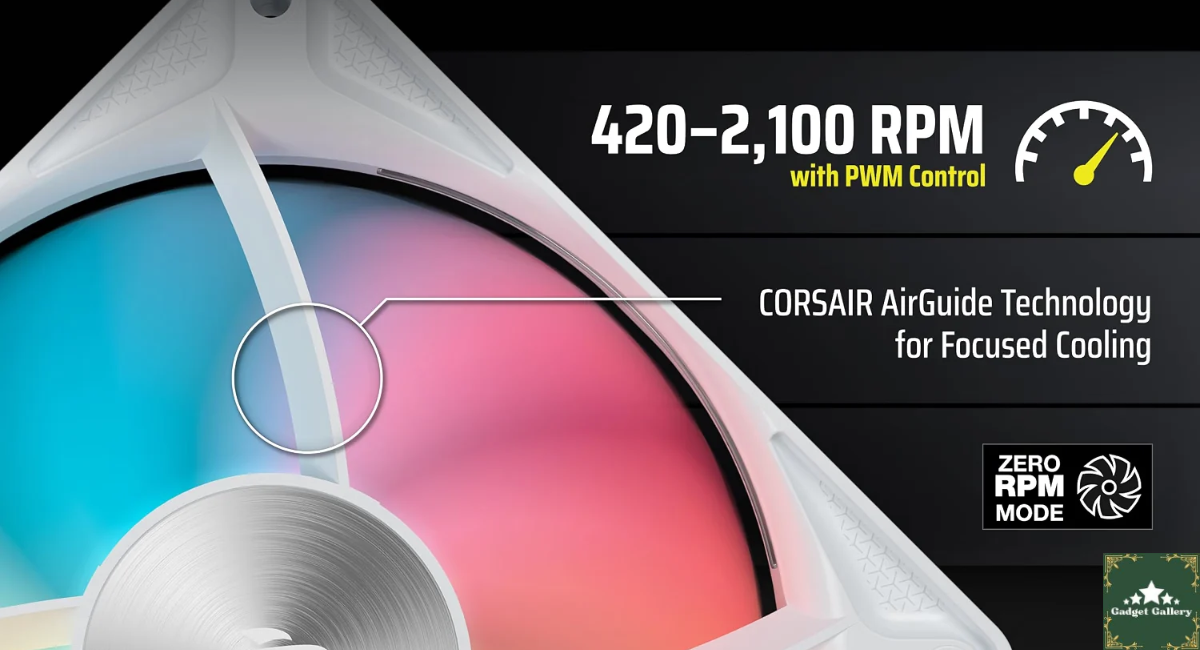
- Fan speed: up to 2,100 RPM, with Zero RPM mode support
- Airflow: about 13.3 to 72.8 CFM
- Static pressure: about 0.2 to 4.15 mm-H₂O
- Noise: fans rated 10 to 36 dBA, pump rated about 20 dBA
- Socket support: Intel LGA 1851 and LGA 1700, AMD AM5 and AM4
- Warranty: 5 years (per a Back2Gaming review’s spec table)
One detail I like: Corsair says no separate controller is required. The cooler plugs directly into your motherboard, and the fans can be daisy-chained to keep cable clutter down.
A quick compatibility warning. The supported sockets are modern ones. Older Intel sockets such as LGA 1200 or LGA 115x are not on the list, so check your CPU before buying.

The Noise Story: Quiet, With One Honest Caveat
Noise is the whole reason many people pick this cooler, so I checked what others reported.
The pump is rated around 20 dBA, which most reviewers describe as inaudible in a normally ventilated room. The fans top out at about 36 dBA at maximum speed, but everyday use sits well below that ceiling. A review-aggregation page summed it up by saying most buyers describe it as one of the quieter AIOs they have used.
Now the caveat. Back2Gaming’s review listed one negative: it will get noisy on hotter CPUs. That is true of any air or liquid cooler. If your processor pulls a lot of power, the fans have to spin faster, and fast fans are louder.
What helps:
- Set a sensible fan curve in your BIOS so the fans do not spike at every brief load.
- Use the Zero RPM option if your motherboard supports it, so the fans stop completely when the CPU is cool.
- Make sure case airflow is decent so the radiator is not drinking hot air.
Cooling Performance: What Other Builders Measured
I always want real numbers, not just claims. One detailed customer test on a French retailer’s site is worth noting. At about 30 degrees Celsius ambient, with a Ryzen processor and a Radeon RX 9060 XT both under load in FurMark, the CPU reached 91 degrees Celsius at roughly 179 watts. The same reviewer said the Nautilus 240 RS cooled better than a Noctua NH-U12A and a Thermalright Phantom Spirit 120 in that same scenario, which both reached about 95.4 degrees.
Another buyer at the same retailer, using a Ryzen 7 9700X, reported temperatures staying under 60 degrees Celsius even at full load.
How do you read that?
- Mid-range CPUs are comfortable. A modern 8-core chip runs cool and quiet on a 240mm AIO.
- Very hot CPUs push the limit. A top-tier processor running a combined CPU and GPU stress test in a warm room will get warm, as the 91-degree result shows.
- Ambient temperature matters. That test ran in a 30-degree room, which is hotter than most people’s homes.
A fair caution: these are individual user results, not controlled lab tests. Your temperatures depend on your CPU, your case, your thermal paste application, and your room.
Installation: A Step-by-Step That Actually Works
Corsair ships the cold plate with thermal paste already applied, which saves time and avoids the classic “too much paste” mistake. The whole job takes most people 30 to 60 minutes the first time.
- Check your socket. Confirm LGA 1700/1851 or AM4/AM5 support and grab the matching mounting hardware from the box.
- Pre-fit the radiator. Decide where it will mount (front or top) before you touch the CPU. Make sure it clears your RAM and motherboard.
- Mount the fans. Attach the two RS120 fans to the radiator in a push or pull configuration, with airflow direction matching your case plan.
- Install the radiator in the case. Leave screws slightly loose until all four are started, then tighten gradually.
- Mount the pump block on the CPU. Remove the plastic film from the cold plate, line it up, and tighten the screws in a cross pattern, a little at a time.
- Route the tubes carefully. Avoid sharp kinks.
- Connect the cables. Plug the pump into the CPU or AIO pump header, the fans into a fan header (or daisy-chain them), and the ARGB connector into a motherboard addressable header.
- Check BIOS before you game. Confirm the pump runs at full speed and set the fan curve.
Orientation tip: try to keep the pump block from being the highest point of the loop, because air bubbles collect at the top and can make the pump gurgle. A top-mounted radiator with the tubes at the side or bottom is the usual safe choice. Always check the manual for your exact case layout.
The White Build Factor
The “White” in the name is the whole reason many people choose this version. The white radiator and fans pair nicely with white cases, white RAM, and white graphics cards. One buyer described the finish as clean and the white design with ARGB as blending in perfectly with a clean configuration.
A few honest points:
- White shows dust, so expect to wipe it down occasionally.
- ARGB lighting works with the usual motherboard lighting software. Check compatibility with your board’s lighting app before you buy if matching colors matters to you.
- If lighting is not your thing, turn it off in software or at the header and enjoy the cooling.
[Add photos and notes about how it looked in your build.]
Mistakes to Avoid
Mistake 1: Forgetting to check socket and case clearance. Measure the radiator and fan thickness (about 27 mm radiator, 25 mm fans) against your case and RAM before you order.
Mistake 2: Plugging the pump into the wrong header. The pump needs a constant-power header like CPU_FAN or AIO_PUMP. If it is on a header that slows down, you can overheat.
Mistake 3: Ignoring the fan curve. The default curve in some BIOS versions ramps up quickly. A smoother curve keeps noise down without hurting temperatures.
Mistake 4: Blocking the radiator’s airflow. Cables and tight placement can choke the fans. A tidy case matters.
Mistake 5: Overtightening the pump block. Tighten screws evenly and stop when snug. Overtightening can bend the motherboard.
Mistake 6: Expecting an AIO to beat everything. A good air cooler can match a 240mm AIO on a mid-range CPU. Pick the AIO for looks, low-profile clearance, or a hot CPU, not out of habit.
Nautilus 240 vs. Going Air or Going Bigger
vs. a big air cooler: Strong air coolers can be quieter and have no pump to fail. The AIO’s advantage is looks, a smaller footprint near the RAM, and better handling of hotter CPUs.
vs. the Nautilus 360 RS: The 360 mm version has more radiator surface and generally runs cooler and quieter on high-end CPUs. If you have the case space and the budget, it is worth a look. For most mid-range builds, the 240mm is enough.
vs. an LCD-screen AIO: Corsair also sells Nautilus RS LCD versions with a display on the pump block. They cost more, and the screen adds nothing to cooling.

Who Should Buy the Corsair Nautilus 240 RS ARGB White?
It is a strong fit if you are:
- Building a white or light-themed PC and wanting the cooler to match
- Using a mid-range or upper-mid-range CPU where a 240mm radiator is plenty
- Moving from a loud stock cooler and wanting a clear drop in noise
- A first-time AIO buyer who values easy installation and pre-applied thermal paste
- On AM5, AM4, LGA 1700, or LGA 1851 and want broad socket support
Look elsewhere if you are:
- Running a top-tier, very hot CPU where a 360mm radiator gives more headroom
- On an older Intel socket that the cooler does not support
- Short on case space where a 240 mm radiator will not fit
- Wanting zero chance of pump failure, where a high-end air cooler is the simpler choice
- Not interested in lighting or looks, where a plain air cooler may save you money
Pros and Cons
Pros
- Very quiet pump (about 20 dBA) and fans that stay low in normal use
- Pre-applied thermal paste and a straightforward install
- Plugs directly into the motherboard, with no separate controller required
- Wide socket support, including AM5, AM4, LGA 1700, and LGA 1851
- Clean white finish with ARGB lighting that suits white builds
- Zero RPM support for silent operation at low temperatures
- Strong value for a 240mm AIO from a major brand
- 5-year warranty (per a published spec table, so verify on your listing)
Cons
- Fans can get loud on very hot CPUs under heavy load
- A 240 mm radiator limits headroom on top-tier processors
- Older Intel sockets are not supported
- White surfaces show dust
- Aluminum radiator rather than copper, which is normal at this price
- Availability and pricing may fluctuate, so check before you plan a build around it
FAQs
Q: Is it called the Nautilus II 240 RS ARGB? A: On Corsair’s own site the product is listed as the NAUTILUS 240 RS ARGB (White). Check the exact name and model number on your listing before buying.
Q: Which sockets does it support? A: Intel LGA 1851 and LGA 1700, and AMD AM5 and AM4.
Q: How loud is it? A: The pump is rated about 20 dBA, and the fans 10 to 36 dBA depending on speed. In everyday use it is described by many buyers as very quiet, and it gets louder on hot, heavily loaded CPUs.
Q: Do I need Corsair iCUE software? A: No. Corsair says no separate controller is required, and the cooler connects directly to your motherboard. You control the fans and lighting through your motherboard software.
Q: Is the thermal paste included? A: Thermal paste comes pre-applied on the cold plate. Keep a small tube of spare paste on hand in case you ever remove the block.
Q: Will it fit in my case? A: The radiator is roughly 276 x 120 x 27mm and the fans are 25mm thick. Check your case’s 240mm radiator support and your RAM clearance.
Q: Is it good for gaming PCs? A: Yes, for mainstream gaming CPUs. For very hot, high-power processors, a 360mm AIO gives more headroom.
Q: Can I turn the lighting off? A: Yes, through your motherboard lighting software or by unplugging the ARGB connector.
Final Thoughts
The Corsair Nautilus 240 RS ARGB in white is a sensible, no-drama AIO. It is quiet, easy to install, and looks great in a white build, and independent buyer tests show it holds its own against well-regarded air coolers on mainstream CPUs.
It is not the answer for every system. Very hot processors want more radiator, older sockets are not supported, and any cooler gets noisy when it is working hard. If you match it to a mid-range CPU, set a sensible fan curve, and plan your case airflow, it is a good-looking and good-value way to cool a modern PC.
Where to Buy
🛒 Check Current Corsair Nautilus 240 RS ARGB White Price on Amazon →
Related Reviews Worth Reading
- CyberPowerPC Gamer Xtreme Review: A prebuilt gaming PC to compare with a custom build
- XFX Mercury RX 9070 XT Review: A graphics card to pair with your cooled CPU
- Samsung Odyssey G5 QHD Monitor Review: A monitor for your finished build
- Dell SE2726HG 240Hz Monitor Review: High refresh rate for competitive gaming
- SteelSeries Apex 3 RGB Keyboard Review: A quiet keyboard to match your quiet PC
👉 Subscribe to @5stargadgetgallery on YouTube for new PC hardware reviews and honest buying guides every week.
🌐 Start Your Own Tech Review Blog
This site runs on Hostinger, a beginner-friendly hosting platform that makes launching a WordPress review site straightforward.
- Plans from $2.99/month
- Free domain for the first year
- One-click WordPress installation
- 24/7 live chat support
Start your own review blog with Hostinger →
Disclosure: This article contains Amazon Associates affiliate links. As an Amazon Associate I earn from qualifying purchases at no additional cost to you. Specifications come from Corsair’s published product information and retailer listings. Temperature and noise observations from other builders are attributed to their sources and are individual results, not controlled lab tests. Personal experience sections should reflect only what the author actually tested.