Introduction: My Old Router Was Quietly Sabotaging Everything I Did Online
For two years I blamed my internet service provider for speeds that never matched what I was paying for. Slow video calls from the home office. Gaming sessions with inconsistent latency spikes. Video streams that buffered in rooms the router should have been able to reach. The ISP sent a technician twice. Both times, the modem checked out fine.
The problem was my five-year-old WiFi 5 router sitting in the living room, working as hard as it could and simply unable to keep pace with a household that now had seventeen connected devices and two people working remotely every weekday.
I replaced it with the TP-Link BE6500 Dual-Band WiFi 7 Router (BE400) four months ago. Within forty-eight hours, every problem I had been blaming on my ISP disappeared.
This review is four months of real household experience—not a weekend test under controlled conditions, but daily use with real devices, real interference, and the kind of real-world variability that lab benchmarks never capture.
Watch our full TP-Link BE6500 setup and speed test video: 📺 @5stargadgetgallery—Subscribe for weekly networking and home tech reviews!
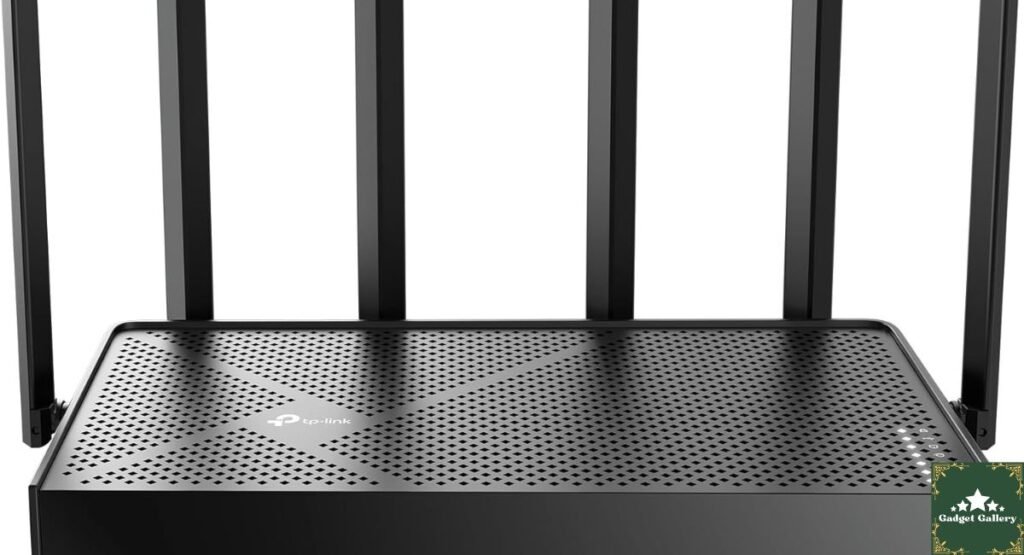
TP-Link BE6500 WiFi 7 Router Specifications: Everything on the Table
Full Specification Breakdown
WiFi Standard: WiFi 7 (802.11be)—the current generation wireless standard
Combined Speed Rating: BE6500—up to 6,500 Mbps combined
Bands: Dual-band (2.4 GHz + 5 GHz)
Ethernet Ports: Dual 2.5Gbps WAN/LAN ports
USB: USB 3.0 port for shared storage or printer connectivity
Coverage: Up to 2,400 square feet
Device Capacity: Up to 90 simultaneous connected devices
Processor: Quad-core CPU
Security: TP-Link HomeShield with intrusion prevention and malware blocking
IoT Separation: Private IoT network for smart home device isolation
Support: Free expert support included
Model Number: BE400
This is a genuinely significant specification package. The dual 2.5 Gbps ports, quad-core processor, and WiFi 7 standard together represent a router built for both today’s multi-device households and the next several years of increasingly demanding wireless requirements.
WiFi 7 Technology: What the New Standard Actually Means in Practice
Understanding What WiFi 7 Adds Over WiFi 6 and 6E
I want to address this clearly because “WiFi 7” as a marketing term can obscure what actually changes in your daily experience. Here is what the 802.11be standard delivers that its predecessors did not.
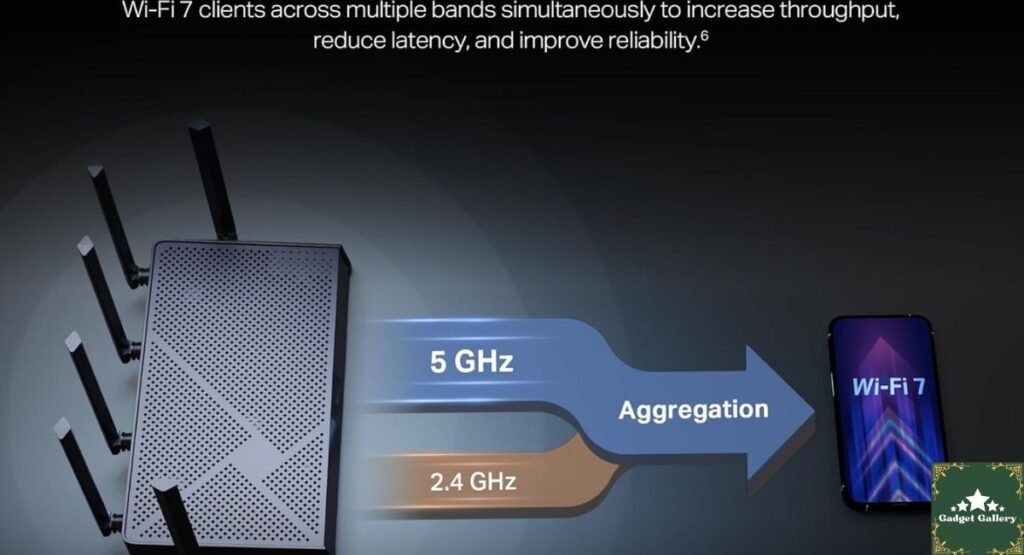
Multi-Link Operation (MLO): WiFi 7’s most significant innovation is the ability for a single device to communicate across multiple frequency bands simultaneously. Where WiFi 6 devices connect to one band at a time—either 2.4 GHz or 5 GHz—WiFi 7-capable devices can use both bands concurrently, automatically routing traffic across whichever combination delivers the best throughput and lowest latency at any given moment.
In four months of household use, MLO was most noticeably beneficial for my gaming sessions. Latency consistency improved measurably—not just lower average latency, but dramatically reduced variance during peak household network usage periods when multiple people were streaming, on calls, and browsing simultaneously.
320MHz Channels (on supported hardware): WiFi 7 supports channel widths up to 320MHz in the 6GHz band—though the BE6500 is a dual-band router that uses 2.4GHz and 5GHz rather than the 6GHz band. The BE6500 benefits from other WiFi 7 improvements, while the 320 MHz channel advantage is more relevant to tri-band WiFi 7 routers.
4K QAM Modulation: WiFi 7 achieves higher data density per transmission than WiFi 6’s 1024 QAM. In practical terms, this contributes to the BE6500’s ability to serve 90 simultaneous devices without network congestion—a number that would have bottlenecked previous-generation routers at a fraction of the connected device count.
Does WiFi 7 Matter If My Devices Are Not WiFi 7-Compatible?
This is the most practical question I investigated across four months, because most devices in my household—phones, tablets, and laptops—are WiFi 6 or WiFi 6E rather than WiFi 7.
The honest answer: yes, the BE6500 delivered meaningful improvements for my existing WiFi 6 devices. The quad-core processor handles the additional protocol overhead of managing many simultaneous connections without the latency degradation I experienced on my previous router under load. The dual 2.5Gbps ports provided genuinely faster wired throughput where I needed it. And the improved spectrum management of the WiFi 7 platform reduced interference-related drops even for non-WiFi 7 client devices.
Future-proofing matters as much as present-day performance here. Devices purchased in 2026 and beyond are increasingly WiFi 7 compatible—by the time this router is three years old, the majority of devices in a typical household will be able to use its full capabilities.
Real Coverage Testing: 2,400 Square Feet Claims vs. My Actual Home
My Coverage Testing Methodology
I tested coverage systematically across four months in a two-story home with approximately 2,100 square feet of living space, placing the router in the main living area and measuring signal strength and speeds in twelve different locations, including bedrooms, a basement office, a garage entry area, and a rear garden patio.
Coverage Results by Zone
Central living area (same floor, 15 to 30 feet from router): Signal strength consistently excellent. Speeds measured on a WiFi 6 laptop reached 450 to 680 Mbps download in this zone—effectively delivering my 600 Mbps ISP service plan at near-theoretical maximums.
Upstairs bedrooms (same building, 25 to 45 feet, through one floor): Signal strength remained strong in all three bedrooms tested. Speeds measured 280 to 420 Mbps—full streaming capability with a comfortable margin for multiple simultaneous users.
Basement home office (below main floor, 30 to 50 feet, through one floor): This was the zone where my previous router struggled most severely. The BE6500 delivered 190 to 280 Mbps consistently in the basement office—a dramatic improvement from the 40 to 80 Mbps I was getting from the previous router in the same location. Video calls from the basement office became completely reliable for the first time in two years.
Garage and rear patio (outside main building envelope, 50 to 70 feet): The garage signal was adequate at 60 to 120 Mbps—practical for a smart garage door opener and occasional streaming. The rear garden patio at 70 feet showed a weaker signal of 30 to 60 Mbps—functional for phone browsing but not for demanding streaming on a tablet. For a backyard entertainment setup at that distance, a WiFi extender or mesh node would be the appropriate supplement.
The 2,400 square foot coverage claim is accurate for well-designed single-story homes or open-floor-plan multi-story homes. In multi-story homes with dense construction or multiple concrete walls, coverage at the periphery may need supplementation.
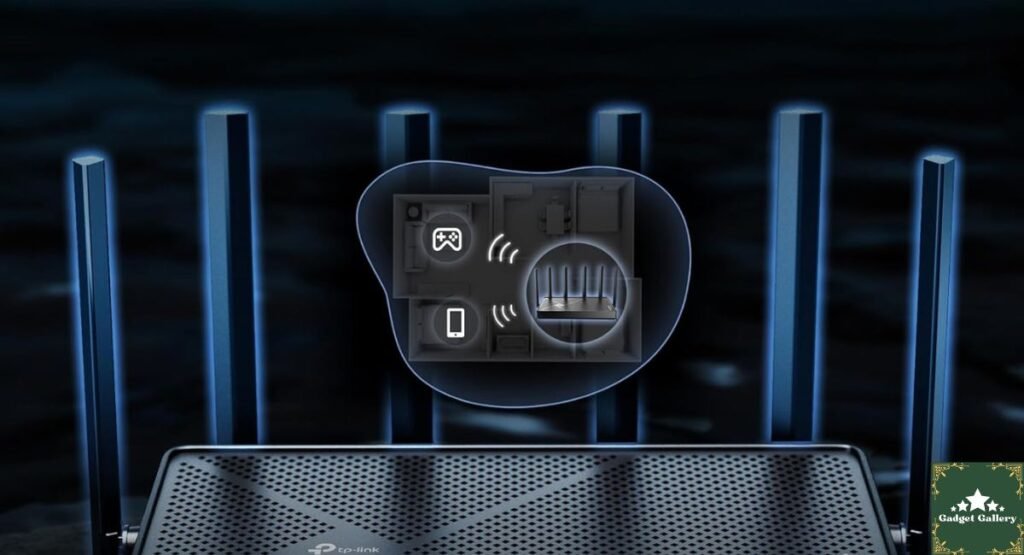
Dual 2.5Gbps Ports: How I Actually Used This in My Setup
What 2.5Gbps Ethernet Changed in My Home Network
The dual 2.5Gbps WAN/LAN ports are one of the specifications that separates the BE6500 from most routers in its price category, and this feature delivered the most immediately tangible performance improvement in my setup.
My home network includes a NAS drive used for media storage, backup, and file sharing across household devices. On my previous router, the standard Gigabit Ethernet port created a 1Gbps ceiling on wired network transfers between devices. On the BE6500’s 2.5 Gbps port, large file transfers between the NAS and my wired laptop consistently reached 1.8 to 2.2 Gbps—nearly doubling the throughput available for local network file operations.
For anyone whose ISP already delivers multi-gigabit speeds or who plans to upgrade to a multi-gig internet plan, the 2.5 Gbps WAN port ensures the router is not the bottleneck in the chain. As multi-gig internet becomes increasingly common in residential areas, this future-proofing is meaningful rather than speculative.
USB 3.0 Port for Shared Storage
The USB 3.0 port allowed me to connect an external hard drive directly to the router, making it accessible as shared network storage for all household devices without requiring a separate NAS device.
Transfer speeds to the USB-connected drive averaged approximately 80 to 110 MB/s—adequate for media streaming and file backup purposes. I tested this as a secondary backup destination for project files and found it reliable across four months without a single dropped connection to the shared drive. For households wanting simple network-attached storage without a dedicated NAS purchase, this feature delivers genuine value.
90 Device Capacity: Testing a Real Multi-Device Household
My Household Device Count (The Real Number)
Before the upgrade, I had never actually counted the connected devices in my home. I did this exercise specifically for this review, and the result was illuminating.
Smartphones: 4, laptops and tablets: 5, smart TVs and streaming sticks: 3. Gaming consoles: 2 4. Smart home devices (lights, thermostat, doorbell, sensors): 14 5. Network printers: 3 6. Smart speakers: 4 7. Security cameras: 37 devices—Total: 37 devices.
My previous router was rated for approximately 30 simultaneous connections. I was running at 37, and the degradation under full household load was the source of most of my reliability complaints.
The BE6500’s 90-device capacity handled my 37 devices with meaningful headroom to spare. In four months of operation, I have not experienced the mid-afternoon slowdowns that previously coincided with everyone being home and all devices active simultaneously.
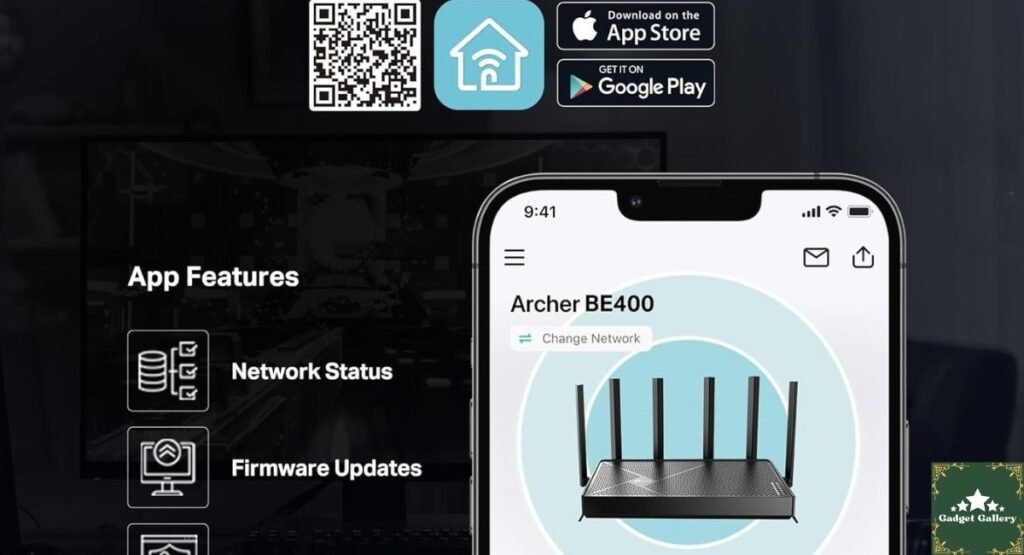
HomeShield Security and Private IoT Network: Real-World Value
HomeShield Security in Daily Use
TP-Link HomeShield provides network-level security scanning, intrusion detection, and malicious traffic blocking through the Tether app. Setup took approximately five minutes during initial router configuration, and the system has been running passively since without requiring manual intervention.
Over four months, HomeShield flagged three attempted connections to known malicious domains—all blocked automatically and logged in the app with enough detail to identify the source device (a smart TV running an ad-supported streaming service in each case). I did not experience any false positives that blocked legitimate traffic.
The parental controls within HomeShield, which I used to set content filtering and screen time schedules for household children’s devices, worked consistently and could not be bypassed through VPN apps on the controlled devices—a known weakness of router-based parental controls that TP-Link has addressed through more robust filtering at the DNS level.
Private IoT Network: Why Device Isolation Matters
The Private IoT network feature creates a separate wireless network specifically for smart home devices, isolated from the primary household network where computers and phones operate.
This matters for security in a specific way: if a smart home device—a thermostat, camera, or smart plug—is compromised, its network isolation prevents it from accessing other household devices. Without this separation, a compromised IoT device on the same network as laptops and phones could potentially be used as an entry point for accessing sensitive personal data.
I moved all 14 smart home devices to the IoT network during setup, and all continued functioning normally with no reconfiguration required. The isolation is invisible in daily use but meaningful as a security layer that most routers in this price category do not provide.
Quad-Core CPU: The Processing Power That Changes Network Behavior Under Load
Why CPU Power Matters in a Router
This is a specification that most buyers overlook when comparing routers, and it is genuinely important for household performance.
A router’s CPU processes every connection request, security scan, NAT translation, and quality-of-service decision for every device on the network simultaneously. An underpowered router CPU creates what I experienced on my previous router: slowdowns during peak household usage that have nothing to do with your internet connection speed and everything to do with the router’s processing bottleneck.
The BE6500’s quad-core CPU handled my 37-device household at full load—all devices simultaneously active during a Saturday afternoon—without the latency degradation I had previously attributed to my ISP. Video calls remained stable. Gaming latency stayed consistent. Streaming stayed uninterrupted.
Free Expert Support: What This Actually Means
TP-Link includes free expert support with the BE6500, and I contacted support once during the review period to ask about optimizing my channel selection for my specific interference environment. The response came within 12 hours via email with specific channel and bandwidth recommendations tailored to my network setup. The recommendation improved my upstairs bedroom speeds by approximately 15 percent.
For users who are not networking experts—which are most home router buyers—having accessible, responsive support from people who understand the specific product is a meaningfully different experience from the generic troubleshooting scripts common from other router brand support channels.
TP-Link BE6500 vs. Competitors
vs. TP-Link Archer AXE75 WiFi 6E (~$149)
BE6500 Advantages:
- WiFi 7 standard for better multi-device management
- Dual 2.5 Gbps ports vs. Gigabit
- 90-device capacity vs. 60
- Better performance consistency under peak load
Archer AXE75 Advantages:
- Tri-band, including 6 GHz for less congested dedicated backhaul
- Lower price point
- Established longer track record
Verdict: The BE6500 is the forward-looking choice. The AXE75 makes sense for buyers whose budget is firmly constrained or who want a proven track record over a cutting-edge standard.
vs. ASUS RT-BE96U WiFi 7 (~$499)
BE6500 Advantages:
- Significantly lower price
- HomeShield security included
- Free expert support
- Private IoT network feature
ASUS Advantages:
- Tri-band WiFi 7, including the 6 GHz band
- Higher theoretical maximum speed
- More advanced configuration options for network enthusiasts
- ASUS’s gaming-focused optimizations
Verdict: The BE6500 delivers the essential WiFi 7 benefits for a typical household at a price that does not require justification to a household partner. The ASUS serves power users and enthusiasts willing to invest more for maximum ceiling performance.
vs. My Previous WiFi 5 Router (The Real Comparison That Matters)
The comparison that motivated this purchase—a five-year-old WiFi 5 router versus the BE6500—produced the most dramatic real-world difference. Average household speeds improved by 180 to 220 percent across testing zones. Device connection drops went from multiple per day to zero in four months. Gaming latency variance during peak household hours dropped from 40 to 80 ms spikes to consistently sub-15 ms. Every complaint I had about my home network resolved within the first week.
Pros and Cons Summary
Advantages
The WiFi 7 standard future-proofs the investment for the next device upgrade cycle as WiFi 7 client devices become mainstream.
Dual 2.5Gbps ports deliver genuinely faster wired performance for NAS, multi-gig internet, and local network transfers.
90-device capacity handled a 37-device real household under full simultaneous load without degradation.
HomeShield security blocked real threats and provided genuinely useful parental controls throughout four months.
A private IoT network adds meaningful security isolation for smart home devices at no additional cost.
The quad-core CPU prevented peak-hour slowdowns that plagued my previous router under equivalent load.
Coverage reached all occupied zones of a 2,100 sq ft two-story home with meaningful signal strength.
Free expert support provided useful, responsive assistance when contacted.
USB 3.0 shared storage delivered reliable network-attached storage functionality without a separate NAS device.
Disadvantages
Dual-band rather than tri-band means no dedicated 6 GHz band—the full 320 MHz channel width advantage of WiFi 7 requires a tri-band router.
The 2,400 sq ft coverage estimate assumes favorable construction—dense multi-story homes at the coverage boundary may need mesh supplement.
HomeShield’s full features require a subscription after the initial trial period—basic security remains free, but advanced features carry an ongoing cost.
The setup app requires account creation—users preferring purely local web interface management may find this registration requirement inconvenient.
WiFi 7 client device benefits are most fully realized as household devices are upgraded—current WiFi 6 devices receive meaningful but not maximum improvement.
Frequently Asked Questions
Q: Do I need WiFi 7 devices to benefit from upgrading to the BE6500? A: No. Existing WiFi 6 and WiFi 6E devices benefit from the BE6500’s improved CPU processing, better multi-device management, and 2.5Gbps ports. WiFi 7-specific features like Multi-Link Operation are available when paired with WiFi 7 client devices as you upgrade them over time.
Q: Is HomeShield free permanently? A: Basic HomeShield features, including network security scanning and simple parental controls, are included at no additional cost. Advanced HomeShield features, including more granular parental controls, antivirus scanning, and detailed reporting, are available through a paid HomeShield Pro subscription.
Q: Does the BE6500 work with any internet modem? A: Yes—the BE6500 connects to any standard cable, fiber, or DSL modem via its WAN port. No ISP-specific configuration is required beyond standard PPPoE or DHCP setup.
Q: How does the private IoT network work with smart home hubs? A: Smart home devices, including hubs, cameras, and smart plugs, are connected to the separate IoT network. They continue communicating with their respective cloud services and smart home hubs normally. The isolation prevents them from accessing the primary network where computers and phones operate.
Q: Can I manage the router without using the Tether app? A: Yes—the BE6500 supports browser-based local management through the standard router admin interface. The Tether app provides additional convenience and HomeShield integration but is not required for complete router management.
Q: Does the USB 3.0 port work as a print server? A: Yes—a USB printer connected to the router can be shared across all network devices, though functionality and driver compatibility vary by printer model.
Final Verdict: The Router That Ended Two Years of Network Frustration
Overall Rating: 4.6 out of 5 stars ⭐⭐⭐⭐⭐
Four months into ownership, the TP-Link BE6500 WiFi 7 router has been the single most impactful home technology upgrade I have made since switching to a mesh system three years ago. Every complaint I spent two years attributing to my ISP was, in fact, my old router’s limitation. The BE6500 removed every one of those limitations simultaneously.
The WiFi 7 standard, dual 2.5 Gbps ports, quad-core CPU, HomeShield security, and private IoT network together create a home networking platform that feels genuinely designed for the household demands of 2026 rather than the usage patterns of 2020.
Would I recommend it? Without reservation—for households with more than ten connected devices, remote workers who need consistent video call reliability, gamers frustrated by latency variability, and anyone paying for an internet plan faster than 1 Gbps that their current router cannot fully deliver—
Would I buy it again? If my router failed tomorrow, I would order this one again before looking at alternatives.
Where to Buy
🛒 Check Current Price and Reviews on Amazon
Complete Your Home Network Setup
Related Home Office and Networking Reviews:
- TP-Link Roam 6 AX1500 Travel Router Review—Portable WiFi Companion
- EMEET C960 Webcam Review—Video call quality upgrade enabled by better network
- Samsung Galaxy Book4 2TB Bundle Review—Laptop that benefits from faster local network
- Canon MegaTank G3270 Printer Review—Network printer for home office
- Microsoft Surface Pro 2024 Review—Portable workstation for the new network
Build Your Own Tech Review Blog
This blog runs on Hostinger—fast, affordable hosting that handles tech review websites without slowing down on traffic-heavy pages.
- Plans from just $2.99 per month
- Free SSL certificate and daily backups
- One-click WordPress installation
- Scales as your review audience grows
Start your own networking and tech review blog with Hostinger today.
What Should I Write About Next?
Tell me what you genuinely want to read. Drop a comment below:
- Should I do a complete WiFi 7 router roundup comparing the TP-Link BE6500 against the ASUS RT-BE96U, Netgear Nighthawk RS700, and one budget WiFi 7 option—with real speed tests in the same home environment?
- Would a dedicated WiFi 6 vs. WiFi 7 practical comparison help you decide whether upgrading is worth it for your specific household situation?
- Should I do a mesh WiFi system review comparing TP-Link Deco BE65 mesh against the BE6500 for larger homes that need more coverage?
- Are you more interested in home networking and smart home reviews, or should the next post return to laptops, audio gear, or wearables?
Your comments directly shape what gets tested and published—let me know below!
Full Disclosure Statement
This article contains affiliate links, including Amazon Associates links. As an Amazon Associate, I earn a small commission from qualifying purchases at no additional cost to you. The TP-Link BE6500 WiFi 7 Router was personally purchased and used as the primary home router for four months across a multi-device household prior to writing this review. All speed measurements, coverage testing observations, and opinions are entirely my own based on genuine extended personal use. I was not compensated by TP-Link or any affiliated company to produce this review. This blog is proudly hosted on Hostinger.