My desk setup used to look like someone had dropped a plate of spaghetti on it.
An HDMI cable from the monitor looping around the speakers, a power strip cable running behind the desk, and three USB cables from the keyboard, mouse, and webcam all competing for the two ports on the front of my tower. Every time I shifted my keyboard slightly—which I do constantly—the mouse cable would catch on the edge of the mousepad and flip the whole thing. I’d been tolerating this for two years.
The cable management problem came to a head when I was doing a deep clean of the desk, moved everything to vacuum underneath, and spent twenty minutes untangling the rat’s nest behind my monitor stand.
That was the day I decided to go wireless.
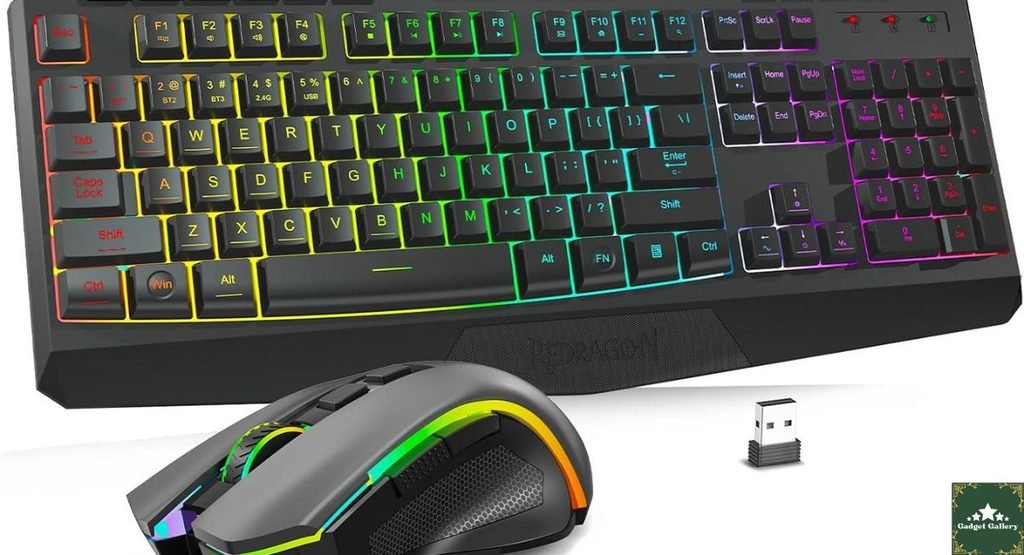
The Redragon S101M-KS—a wireless gaming keyboard and mouse combo with tri-mode connectivity, RGB lighting, a 4800 DPI mouse, and 10 dedicated multimedia keys—was $35 on Amazon. I expected it to be fine for a month until I found something better. Four months later, it’s still the combo I reach for every day.
This is what actually happened.
Why a Combo Instead of Separate Peripherals
If you’re considering this setup, you’ve probably noticed that buying a wireless keyboard and wireless mouse separately almost always costs more than buying them as a matched pair.
The Redragon S101M-KS uses a single 2.4 GHz USB receiver for both devices—one dongle, both wireless. This is the practical advantage nobody talks about enough when comparing combos to individual peripherals.
On my desk right now, I have one USB dongle taking up one USB port. That’s the entire wired footprint of my keyboard and mouse combined. On my previous wired setup, that was three cables minimum.
The cleanliness of the desk after switching was immediately noticeable. Not slightly cleaner—dramatically cleaner. Moving the keyboard doesn’t pull anything. Lifting the mouse to reposition it doesn’t require lifting the mousepad edge. Small things, enormous daily quality improvement.
Unboxing and First Setup: What the First 30 Minutes Looked Like
The box opens to reveal a keyboard, mouse, USB receiver, user manual, and two charging cables—one for the keyboard (USB-A to USB-C) and one for the mouse.
Connectivity setup:
The tri-mode connectivity means three ways to connect:
Mode 1: 2.4 GHz wireless via USB receiver—plug the USB dongle into your computer; both devices connect automatically. This is what I use for gaming. Stable, fast, zero perceptible lag.
Mode 2: Bluetooth 5.0—pair to phones, tablets, or any Bluetooth device. Useful for connecting to my laptop or phone without needing the USB dongle. Range tested to around 30 feet without issues.
Mode 3: Wired USB-C—plug in the charging cable for both wired operation and simultaneous charging. Useful if the battery is critically low and you need to keep working.
The mode switching is done by a physical switch on the keyboard (between the number pad and the right side). One position for 2.4 GHz, one for Bluetooth, and one for wired. It’s simple and obvious.
The first time I switched modes accidentally by brushing the switch while adjusting keyboard position. Spent two minutes confused why my keyboard stopped responding before finding the switch in the Bluetooth position. Worth knowing where it is so you recognize the symptom immediately if it happens.
The Keyboard: Whisper-Quiet Switches With a Real Gaming Layout
The S101M-KS keyboard uses membrane switches with a quiet design. If you’re coming from a clicky mechanical keyboard, the silence will feel jarring at first. If you’re in a shared space and your partner or roommates have ever complained about keyboard noise—these switches are a genuine solution.
The key feel: Membrane with a soft tactile response. It’s not the satisfying click of a Cherry MX Blue, but it’s not the completely dead sponge feel of cheap office keyboards either. There’s feedback. Keys register cleanly, and the actuation is consistent across the board.
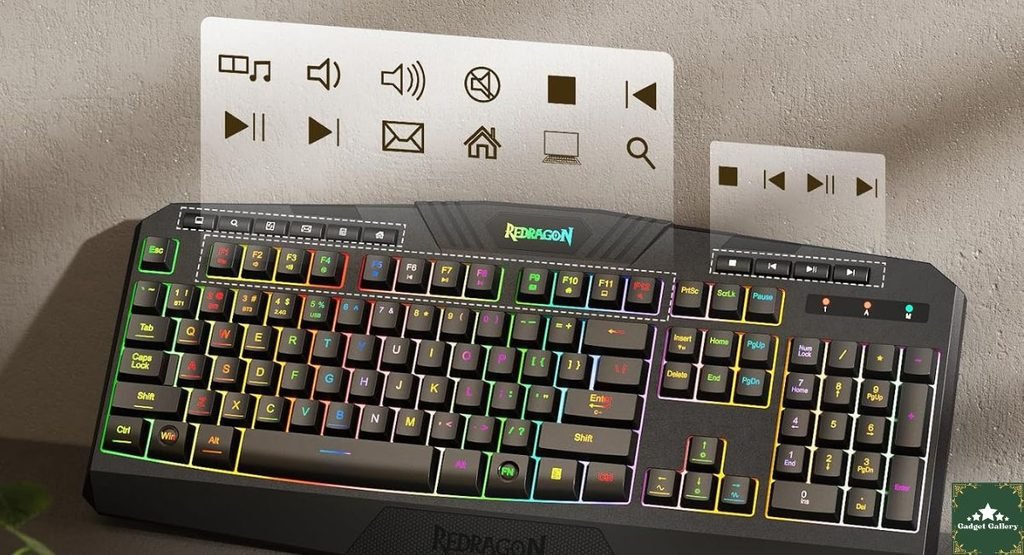
The layout: Full-size layout with dedicated number pad. The 10 independent multimedia keys are positioned above the number pad and handle volume, media playback, and shortcut functions without requiring function key combinations.
I use the volume knob and media controls daily. The ability to pause, skip, and adjust volume with dedicated physical keys without touching my mouse or Alt+Tabbing out of a game has become a workflow habit I didn’t know I was missing.
The RGB: 10-zone RGB illumination with multiple lighting effects controlled directly from the keyboard without software. The default rainbow wave effect is what most people leave it on. Cycling through the modes is done through key combinations (Fn + specific keys change colors, effects, and brightness).
Important note: this keyboard does NOT require any software installation to function fully, including RGB control. Everything is hardware-controlled. Plug in and use.
Battery life on the keyboard: In four months of use at approximately 6-8 hours daily, I’ve charged the keyboard four times. That’s roughly 30+ days of charge per cycle with RGB at medium brightness. At minimum brightness, the battery lasts longer. Impressive for a wireless keyboard with RGB.
The Mouse: 4800 DPI Across Four Settings
The included gaming mouse is a right-handed ergonomic design with side grips, adjustable DPI, and the same RGB styling as the keyboard.
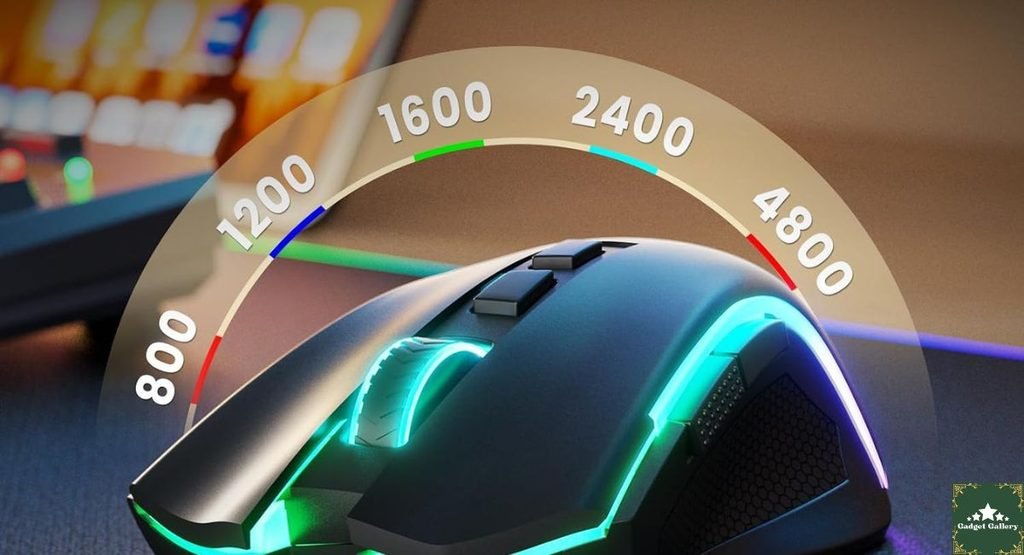
DPI settings: 800, 1600, 3200, and 4800 DPI, cycled by the DPI button behind the scroll wheel. The current DPI setting is indicated by a color on the DPI indicator LED (different color per setting).
For gaming, I use 1600 DPI for precise aiming in slower-paced games and 3200 DPI for faster navigation and general desktop use. 4800 DPI is available for users who prefer extremely fast cursor movement—I find it too sensitive for gaming but useful if your monitor is far from your seating position.
The scroll wheel: light, fast, with clear click steps. For someone who scrolls through long documents or web pages frequently, this is one of those small things that matters over time. Cheap mice have scratchy or uneven scroll wheel resistance that creates a low-grade annoyance over hours of use. The Redragon wheel is smooth.
Mouse size and grip: Right-handed design, medium size. Fits comfortably for palm-grip users with medium- to large-hand users. Claw grip users will find it works fine. Fingertip grip users might find the body slightly large.
Battery life on the mouse: Shorter than the keyboard. I charge the mouse approximately once per week with RGB at medium brightness. At minimum RGB or RGB off, battery life extends noticeably. One full charge takes about 90 minutes via the USB-C cable and provides 3-5 days of typical gaming and work use.
One specific limitation to know: The mouse sensor tracks well on standard cloth and hard mousepads. On glass surfaces or highly reflective materials, tracking is inconsistent. Standard mousepad, no issues.
Real Gaming Performance: What Four Months Actually Revealed
I game primarily on Steam—a mix of single-player RPGs, some Valorant, and occasionally strategy games. Here’s what each scenario revealed.
Single-player RPGs (Elden Ring, Baldur’s Gate 3): The wireless lag at 2.4GHz is imperceptible in single-player gameplay. I could not tell I was using a wireless mouse rather than wired during several months of play. Response time for inputs felt identical to the wired experience. For single-player gaming where exact latency doesn’t determine win/loss, 2.4GHz wireless is indistinguishable from wired.
Competitive multiplayer (Valorant): Here I want to be honest. At 4800 DPI maximum, this mouse isn’t the fastest-tracking sensor on the market. For casual to moderate competitive play, it performs well without causing losses attributable to mouse hardware. For high-level competitive play where sensor accuracy and consistent tracking at extreme speeds matter—tournament-level FPS—dedicated gaming mice with higher-spec sensors are the more appropriate choice.
I play Valorant at the Silver-Gold level. The S101M-KS mouse has never felt like the reason I lost a gunfight. That honest assessment means it serves the vast majority of gaming situations correctly.
Strategy games (Civilization, Age of Empires): The multimedia keys came into their own here. I set the keyboard shortcuts to jump between sections of the map, and having dedicated keys for these without needing to remember complex key combinations was genuinely useful. The quiet switches are also appropriate for the patient, contemplative nature of strategy gaming.
Bluetooth mode for couch gaming: Connected the keyboard to my laptop and played games from the couch at around 10 feet from the laptop. Bluetooth maintained a stable connection for about three hours with no dropouts. The range is sufficient for typical living room setups.
The Multimedia Keys: 10 Independent Functions That Actually Change Your Workflow
The 10 independent multimedia keys sit above the number pad and deserve more attention than most combo reviews give them.
What they control:
- Volume up, down, mute
- Previous track, play/pause, next track
- Calculator shortcut
- Browser home
- Email client shortcut
- Lock workstation
These are all functions I previously accessed through keyboard shortcuts or by moving to my mouse and navigating the taskbar. Having dedicated physical keys for these sounds minor until you’re gaming with music playing and want to adjust volume without Alt+Tabbing. Or you’re in a video call and need to mute instantly. Or you want to open the calculator mid-spreadsheet.
After four months, I use the volume keys and media controls so automatically I forget they’re not standard on every keyboard. Going to other keyboards that don’t have them feels immediately less convenient.
Mistakes I Made—Learn From These
Mistake 1: Assuming both devices charged from the same cable. Both the keyboard and mouse use USB-C, and both cables look similar. But they’re separate cables for separate devices. In the first week I kept unplugging the keyboard cable to charge the mouse when I should have had both plugged in simultaneously. Pay attention to which cable goes to which device.
Mistake 2: Not checking the mode switch when the keyboard stopped responding. The physical tri-mode switch is on the right side of the keyboard. I accidentally bumped it into Bluetooth mode twice in the first month. Both times I spent 2-3 confused minutes thinking the wireless connection had failed before finding the switch. Know where this switch is and what each position does before you sit down to play the game.
Mistake 3: Leaving RGB at full brightness and wondering why the battery drained faster than advertised. Full-brightness RGB is beautiful and also hungry. Battery life claims are tested at medium brightness or lower. The first month I had RGB at full and was charging the mouse every 3-4 days instead of 5-7. Dropping RGB to medium brightness extended the cycle noticeably.
Mistake 4: Using the mouse on a glass desk surface. The first week I was using the mouse directly on a glass desk insert. Tracking was jumpy and inconsistent. Moved to a standard cloth mousepad—immediate tracking improvement. Optical sensors and glass surfaces don’t work well together.
Who Should Buy the Redragon S101M-KS
Buy this combo without hesitation if you:
Are setting up a clean wireless desk and want to eliminate cable clutter with one purchase. A single USB dongle for both keyboard and mouse is the most practical wireless desktop solution at this price.
Are a casual to moderate gamer who plays a mix of single-player games, strategy, and light competitive multiplayer. The performance comfortably serves these use cases.
Need a quiet keyboard in a shared living space. The membrane switches generate essentially no noise, and the wireless design eliminates cable noise entirely.
Want multi-device connectivity? The tri-mode design means switching to a phone or laptop for Bluetooth work without removing the USB receiver from your gaming PC.
Are you a student or first-time PC builder setting up a complete desk for school and gaming on a limited budget? At this price point, the feature set is genuinely better than most options in the category.
Want dedicated multimedia keys for streaming, music, or content consumption alongside gaming.
Consider alternatives if you:
Play competitive esports at a high level where sensor precision and the absolute lowest click latency directly affect your performance. Dedicated gaming mice in the $50-80 range have higher-spec sensors for this use case.
Strongly prefer mechanical key switches—the membrane switches on the S101M-KS are good for membrane, but they’re not mechanical. If you’ve used mechanical switches and consider the tactile feedback essential, this combo won’t satisfy that preference.
Have very large hands—the mouse is medium-sized and right-handed. Large-hand users may find the mouse body slightly undersized for comfortable extended sessions.
Pros and Cons
Pros
Single USB receiver for both devices—one dongle, two wireless peripherals, and a genuinely clean cable-free desk setup
Tri-mode connectivity—2.4 GHz wireless, Bluetooth 5.0, and wired USB-C—covers every use case and device type.
Excellent battery life on keyboard—30+ days per charge with medium RGB is outstanding for a wireless keyboard with RGB.
Dedicated multimedia keys — 10 independent function keys that improve daily workflow beyond gaming
True plug-and-play—no software installation required for any function, including RGB control
Quiet membrane switches—appropriate for shared spaces, late-night gaming, and environments where keyboard noise causes friction
4800 DPI mouse with multiple settings—adjustable DPI for different gaming and productivity scenarios
RGB on both devices—matched aesthetic between keyboard and mouse with no additional software needed
USB-C charging on both—the modern standard connector eliminates proprietary cable frustration.
Budget-friendly price—gaming-focused feature set at a fraction of what individual branded wireless peripherals cost
Cons
Mouse battery life is shorter than keyboard—weekly charging is realistic with RGB enabled; some users will find this more frequent than desired.
Membrane switches won’t satisfy mechanical keyboard fans—this is a membrane keyboard and performs well as one, but it’s not a mechanical keyboard.
The mouse sensor has a ceiling for high-level competitive gaming—performs well for casual and moderate gaming; it is not the appropriate tool for tournament-level FPS sensitivity requirements.
The accidental mode switch is easy—the tri-mode switch on the keyboard is exposed and can be bumped during handling; it requires occasional awareness.
No dedicated software for customization—hardware-only RGB and DPI control means fewer customization options than keyboards with companion apps.
Right-handed mouse only—no left-handed configuration available; left-handed users need to look elsewhere.
FAQs
Q: Does the single USB receiver actually work for both keyboard and mouse? A: Yes. One USB dongle connects both devices simultaneously in 2.4GHz mode. You do not need separate receivers for keyboard and mouse—it’s genuinely one dongle for the full combo.
Q: Can I connect the keyboard to my phone and the mouse to my PC simultaneously? A: No—both devices use the same tri-mode switch and will be in the same mode at any given time. Both in 2.4 GHz for PC, or both in Bluetooth for phone/laptop. You can’t split them between different connectivity modes simultaneously.
Q: How long does the mouse battery last per charge? A: With RGB at medium brightness and typical gaming and work use (6-8 hours daily), approximately 5-7 days per charge. With RGB disabled, significantly longer. Full charge takes approximately 90 minutes via USB-C.
Q: Is there software required for this combo? A: No. Both devices function fully—including all RGB modes, DPI settings, and multimedia key functions—without installing any software. Plug in the USB receiver (or connect via Bluetooth) and all features work immediately.
Q: Does this combo work on Mac? A: Basic keyboard and mouse function works on macOS via the USB receiver or Bluetooth. Some multimedia keys may behave differently on Mac than Windows due to OS differences. The DPI cycling and RGB control work regardless of OS.
Q: What’s the wireless range on 2.4 GHz? A: Tested a stable connection to approximately 30 feet in open space. In typical desk gaming setups with the receiver plugged into the front of a nearby tower, range is not a practical limitation.
Q: Is the mouse suitable for FPS gaming? A: For casual and moderate competitive FPS gaming, yes—the 4800 DPI with adjustable sensitivity handles it well. For high-level competitive FPS where sensor accuracy directly determines competitive performance, dedicated gaming mice with higher-specification sensors are the more appropriate tool.
Final Thoughts
Four months ago I bought this combo to solve a cable problem. The desk is cleaner. The wireless works reliably. The keyboard is quiet enough that gaming after midnight doesn’t wake anyone. The mouse tracks well across hundreds of hours of use. The battery life on the keyboard is better than I expected, and the mouse charges fast enough that weekly charging is a non-issue.
None of that would have been surprising if I had spent $200 on a premium wireless keyboard and a separate premium wireless mouse. The part that still surprises me is that it came from a $35 combo purchase that I initially planned as a temporary fix.
Redragon doesn’t make premium peripherals. What they make, consistently, is budget peripherals that perform above their price point for the majority of users. The S101M-KS is a strong example of that formula working correctly.
If you’re a casual to moderate gamer who wants wireless freedom, RGB style, quiet switches, and dedicated multimedia keys without spending what a mechanical keyboard alone would cost, this is the right combo to buy.
Where to Buy
🛒 Check Current Redragon S101M-KS Price on Amazon →
Related Reviews Worth Reading
- SteelSeries Apex 3 RGB Keyboard Review—Step up to a dedicated quiet gaming keyboard
- Logitech Ergo K860 Keyboard Review—Ergonomic wireless upgrade for long sessions
- Samsung Odyssey G5 QHD Monitor Review—Monitor to complete your wireless gaming desk
- Dell SE2726HG 240Hz Monitor Review — High-refresh-rate alternative display
- Ozeino Gaming Headset White Review—Complete your gaming setup with audio
📺 Watch Our Redragon S101M-KS Full Combo Test
See the wireless range test, RGB showcase, and real gaming latency comparison on 2.4 GHz vs. wired:
👉 Subscribe to @5stargadgetgallery on YouTube—weekly gaming peripheral reviews and honest budget gear tests. Hit the notification bell!
🌐 Start Your Own Gaming Gear Review Blog
This site runs on Hostinger—the hosting platform I recommend for anyone starting a gaming review blog from scratch.
- Plans start at $2.99/month
- Free domain for year one
- One-click WordPress installation
- Fast servers for image-heavy review content
- 24/7 live chat support
Start your gaming peripheral review blog with Hostinger.
Disclosure: This article contains Amazon Associates affiliate links. As an Amazon Associate, I earn from qualifying purchases at no additional cost to you. The Redragon S101M-KS was personally purchased and used for four months of daily gaming and productivity before writing this review. All findings are entirely my own.